Viewing receipt by location
The Receipt by location (Marketer) screen enables users to track and review gas receipts at city gate locations within a defined date range. It allows filtering by parameters such as pipeline, pool, Local Distribution Company (LDC), and marketer to refine the displayed data. This screen assists users in monitoring transactions, validating receipts, reconciling deliveries, and ensuring accurate gas allocation across multiple entities for reporting and operational analysis.
The Receipt by location screen aggregates receipt data from various pipelines and LDC, providing visibility into marketer-specific gas deliveries. It ensures that city gate receipts align with scheduled and actual gas movements, supporting precise reconciliation and reporting.
This document outlines the purpose, prerequisites, and step-by-step procedure for accessing and using the Receipt by location screen in nGenue, including detailed field descriptions for accurate data interpretation and analysis.
Prerequisites
Before working on the Receipt by location screen, ensure the following prerequisites are met:
- Ensure the nGenue application is installed and use valid login credentials to log into the application.
- User permissions: Must configure the security settings including User type, Security user, Security group, Security assign user, and Security assign permissions in their respective screens to ensure the required access and permissions for Receipt by location screen actions.
- LDC: Must be configured to define LDC details required for pool and marketer associations.
- LDC pool: Must be established to define the relationship between pools and LDC for tracking gas movement.
- Pipeline, zone, and location: Must be configured to define pipeline routes, delivery zones, and city gate locations used for gas receipt tracking.
- Marketer: Must be created to represent the gas marketer responsible for the supply and receipt transactions.
- Retail demand pool: Must be configured to define demand pools that link marketers to specific LDC or pools for receipt allocation.
- Deal management: After configuring the retail demand pool, users must navigate to the Deal management screen to select Retail demand requirements as the instrument or create a Physical retail deal by selecting the configured retail demand pool and enabling the Auto sync retail demand checkbox. Once the retail demand pool is linked to an LDC or another pool, the system automatically applies the associated demand pool. If no specific demand pool is assigned, the system defaults to the LDC’s demand pool. After this setup, the Receipt by location (Marketer) screen populates data, displaying gas receipts at city gate locations for tracking and reconciliation.
Procedure to view receipt by location
Step 1: Navigate to the Receipt by location screen
- Log in to the nGenue application.
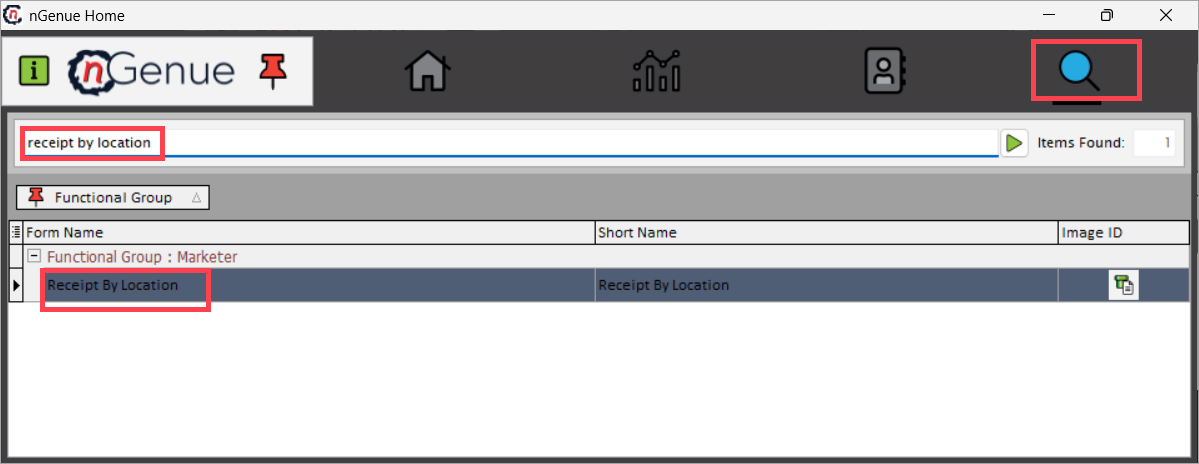
- Click the Search icon and enter receipt by location in the search bar.
-
Double-click Receipt by location to open the screen.
-
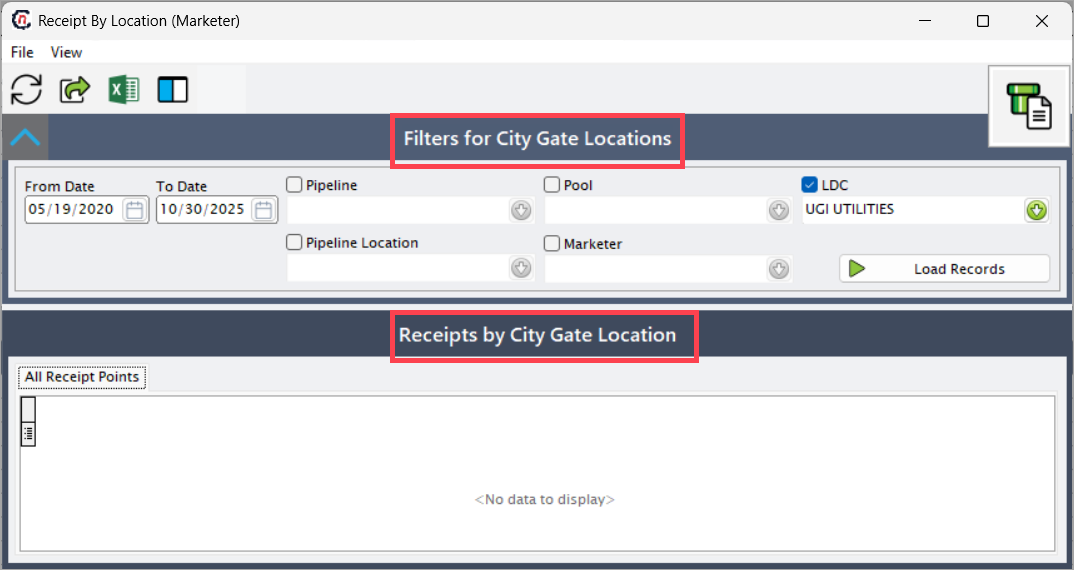
The screen consists of two sections:
- Filters for city gate: Enables users to refine and customize the displayed data based on criteria such as pipeline, pool, LDC, marketer, and date range. This section helps narrow down data to specific records relevant to the analysis.
-
Receipts by city gate location: Displays the results based on the selected filters, providing a detailed view of gas receipts by city gate for reconciliation and reporting.
Step 2: Execute filters for city gate
-
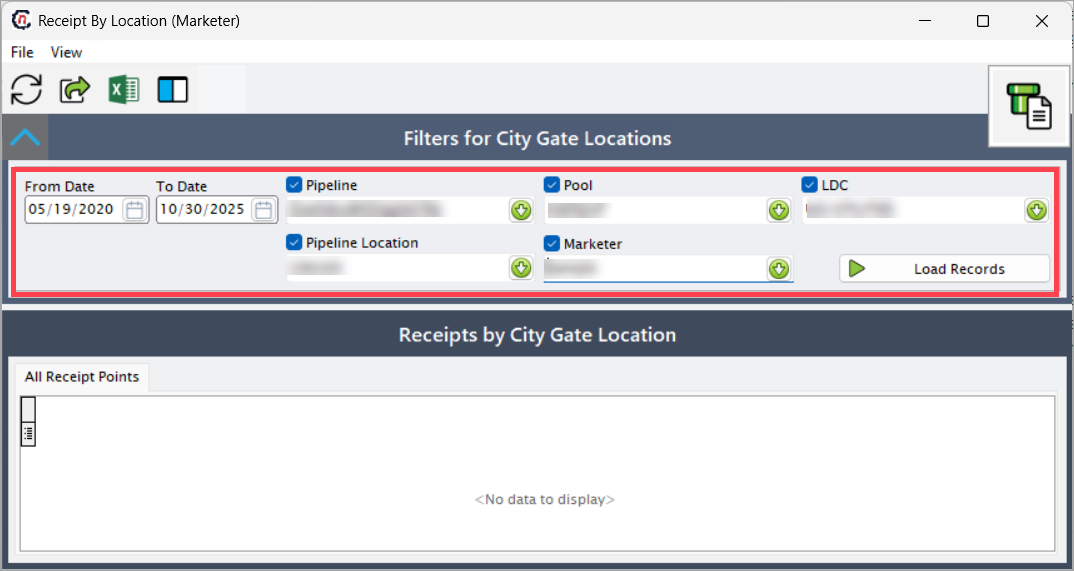
Select the following filters to define the data range and scope for retrieval:
Fields Description Date range Defines the start and end dates for retrieving receipt details. The system loads receipts within this specific timeframe, allowing users to analyze daily or periodic gas receipts. Pipeline Filters records by the selected pipeline. This ensures only transactions associated with the specified pipeline are displayed. Pool Filters receipts by the selected pool. The pool represents a group of gas supplies linked to specific LDC and marketers. LDC Filters receipts by the selected Local Distribution Company. This helps track receipts tied to specific gas distribution networks. Pipeline location Narrows the results to a specific city gate or delivery point within the pipeline. Useful for viewing receipts tied to a particular geographic point. Marketer Filters receipts based on the marketer responsible for the gas transaction. This helps analyze marketer-level receipt data for reconciliation. -
After selecting the filters, click the Load records button.
-
The system retrieves data based on the selected filter criteria and displays it in the Receipts by city gate location section.
Step 3: View receipts by city gate location
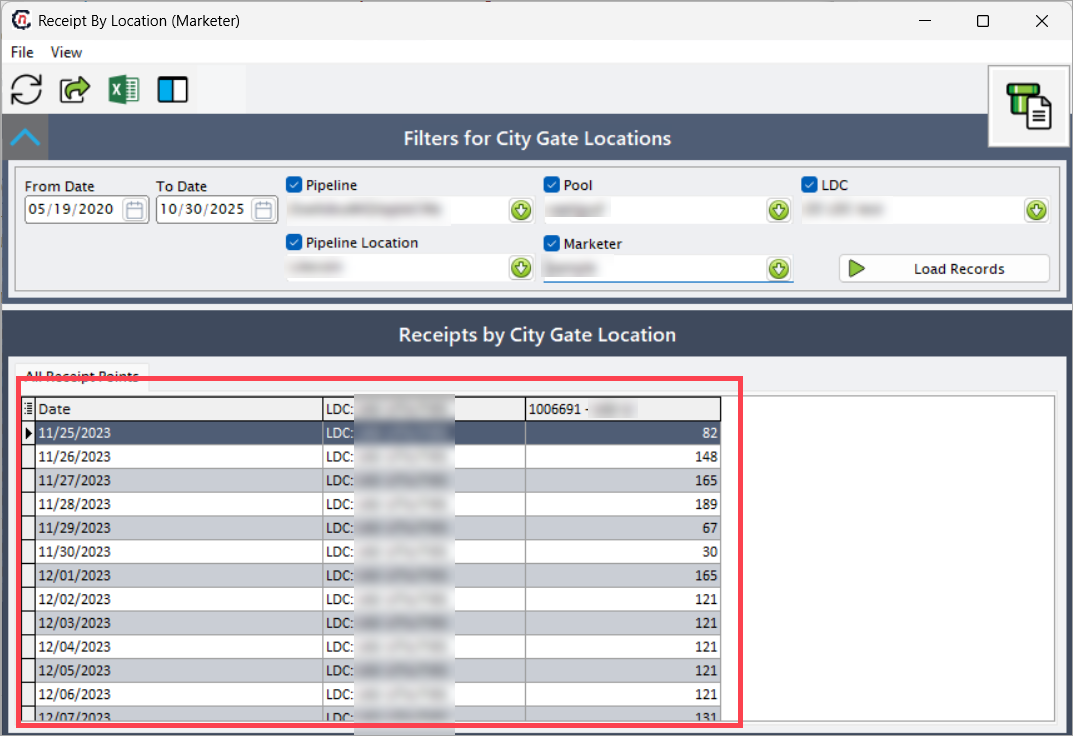
The Receipts by city gate location section displays detailed receipt data based on the selected filters. Each record corresponds to a specific date, pipeline location, and LDC, allowing users to analyze receipt patterns and verify allocations.
| Fields | Description |
|---|---|
| Date | Displays the transaction date for the recorded gas receipt. Each row represents a specific day’s receipt data. |
| Pipeline location | Displays the name of the city gate or delivery point on the pipeline where the gas receipt was recorded. This corresponds to the configured pipeline location. |
| LDC | Displays the LDC associated with the selected pipeline and location. This helps identify which distribution company received the gas. |
Summary
The Receipt by location screen provides a comprehensive view of gas receipts across city gate locations for each marketer, LDC, and pool. By applying filters and analyzing the displayed data, users can validate receipt accuracy, identify discrepancies between contracted and actual volumes, and ensure balanced gas delivery management across pipelines and distribution networks.