Meter read import wizard
The Meter read import wizard is used to upload daily or monthly usage files into the system for processing and reporting.
Each file must contain mandatory fields including facility ID, account number, converted volume, and daily read date (for daily reads), or period start and end dates (for monthly/cycle reads).
The system validates all data during import, and any issues can be reviewed through the EDI Session History screen and corresponding log files.
Prerequisites
Before working on the Meter read import wizard screen, ensure the following prerequisites are met:
- Ensure the nGenue application is installed and use valid login credentials to log into the application.
- User permissions: Must configure security settings including User type, Security user, Security group, Security assign user, and Security assign permissions in their respective screens to ensure required access for Meter read import wizard actions.
Procedure to configure meter read import wizard
Step 1: Navigate to the Meter read import wizard screen
- Log in to the nGenue application.
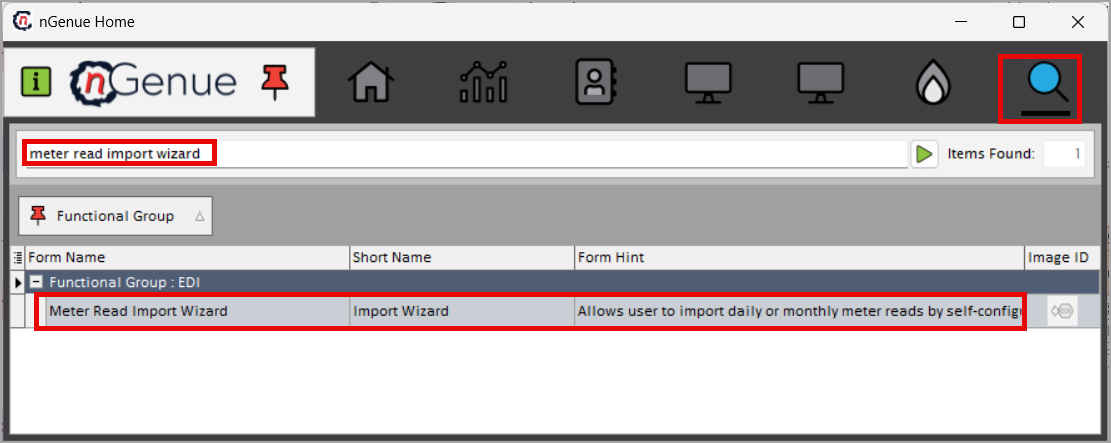
- Click the Search icon and enter meter read import wizard.
-
Double-click Meter read import wizard to open the screen.
-
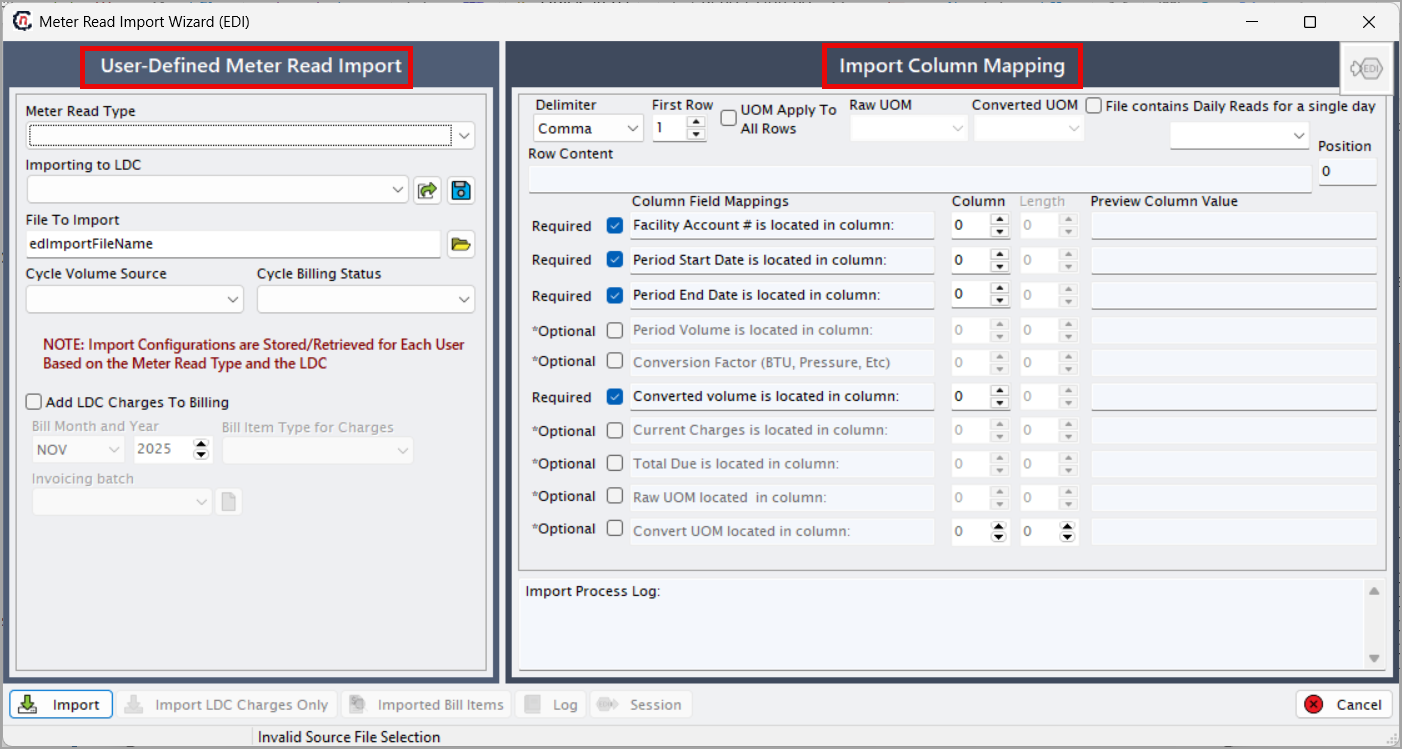
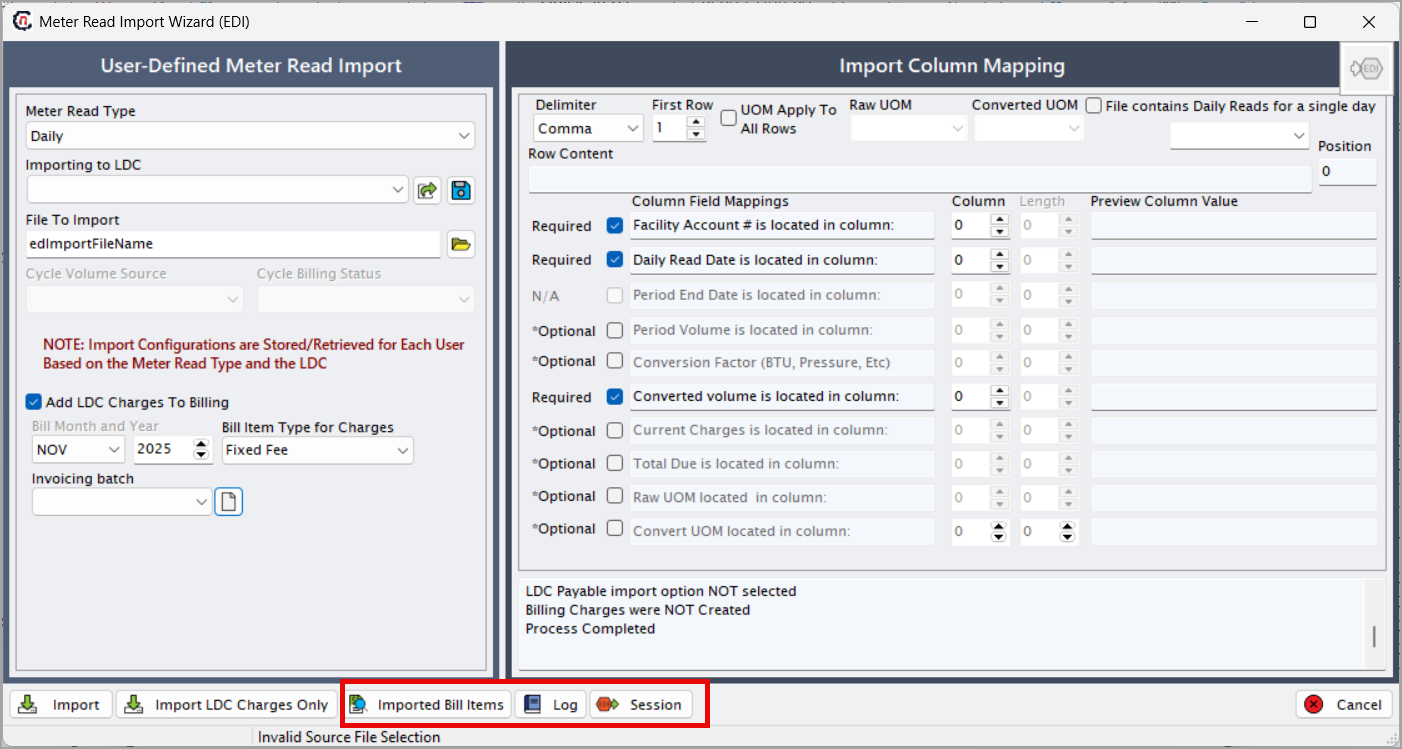
The screen is divided into two sections:
- User defined meter read import: Used to select the meter read type, LDC, file, billing setup, and basic import configuration.
-
Import column mapping: Used to map file columns to system-required fields and define delimiter, row settings, and UOM rules.
Step 2: Import daily or monthly usage file
In the User defined meter read import section:
Note
Import configurations are stored/retrieved for each user based on the meter read type and the LDC.
| Field | Description |
|---|---|
| Meter read type | Select Daily or Monthly/Cycle based on the file being imported. |
| Importing to LDC | Select the LDC for which usage data is being uploaded. |
| File to import | Click the file picker icon and browse to select the import file. |
| Cycle volume source | Available only for Monthly/Cycle imports. Select: History, Volume to Invoice, Estimate, Cancel/Rebill, or Other. Disabled for daily imports. |
| Cycle billing status | Available only for Monthly/Cycle imports. Select: Not for Billing, Ready to Bill, Billed, Billing Held Up, or Ready for True-Up. Disabled for daily imports. |
| Add LDC charges to billing | Enable if LDC charges should be included in billing. |
| Bill month and year | Select the billing period (month/year). |
| Bill item type for charges | Choose the bill item type from the dropdown. |
| Invoicing batch | Click New invoice batch, select a log file location, and click Accept. |
Step 3: Map required and optional fields
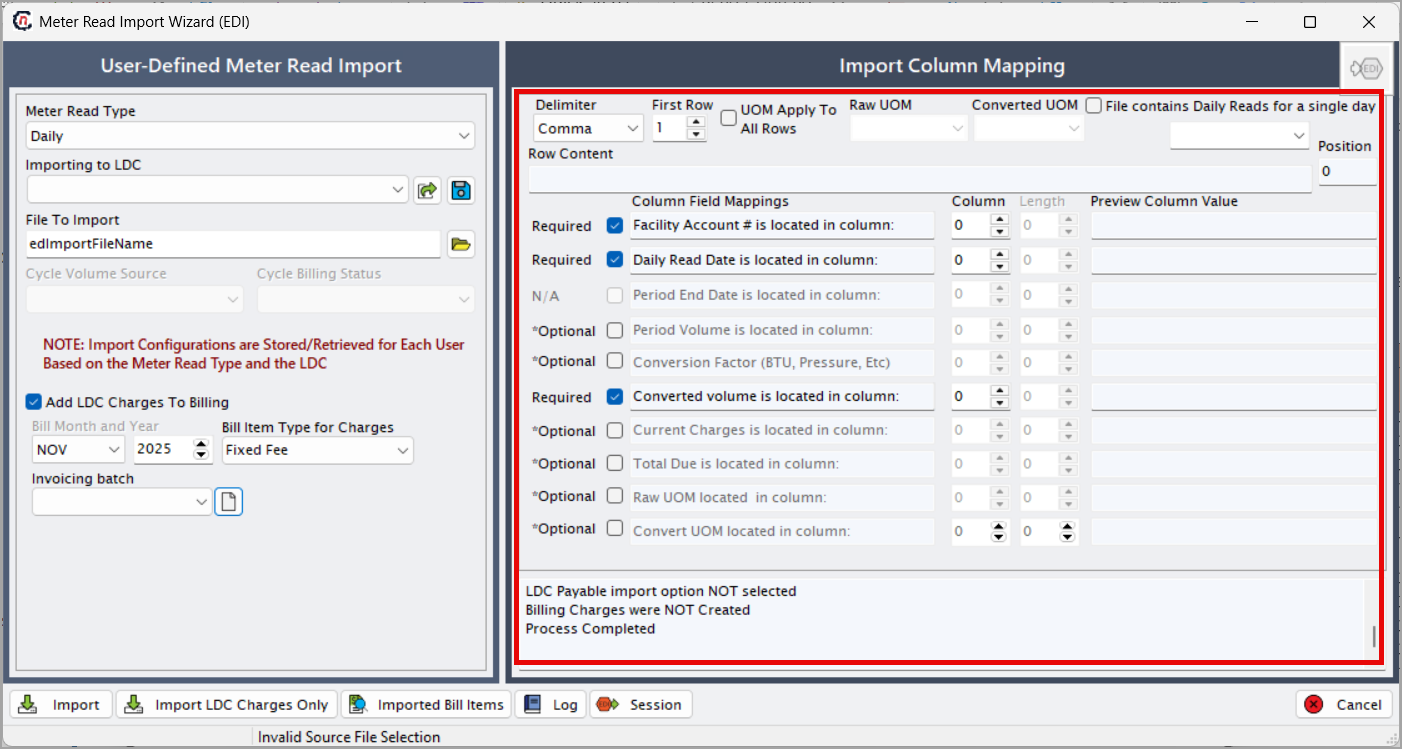
In the Import column mapping section:
| Field | Description |
|---|---|
| Delimiter | Select the file delimiter: Comma: For CSV-style files. Tab: For tab-separated text files. Fixed width: For files where each column has a predefined character width. Pipe: For data separated using | symbols. |
| First row | Enter the row number where actual data begins (excluding headers). Example: If rows 1–4 are headers, enter 5. |
| UOM apply to all rows | Enable if the same Raw UOM and Converted UOM apply to every row. |
| File contains daily reads for a single day | Enable only if all daily reads in the file correspond to one date. |
| Row content | Specify the row containing column names (if applicable). |
| Position | Required for fixed-width files; defines the starting character position. |
Required fields
Define the column numbers for the following fields:
| Field | Description |
|---|---|
| Facility account # | Identifies the facility associated with the usage record. |
| Daily read date | Specifies the read date for daily usage imports. |
| Converted volume | Represents the normalized usage volume used for billing and reporting. |
| Period start date/Period end date | Defines the billing period for monthly or cycle-based imports. |
Optional fields (if included in file)
| Field | Description |
|---|---|
| Conversion factor | Indicates any BTU, pressure, or other conversion multiplier. |
| Raw UOM | Displays the original unit of measurement in the file. |
| Converted UOM | Displays the standardized unit of measurement after conversion. |
| Current charges | Lists any charges associated with the usage record. |
| Total due | Shows the total billed amount for the period. |
| Period volume | Indicates the measured volume for the specified period. |
Step 4: Initiate the import process
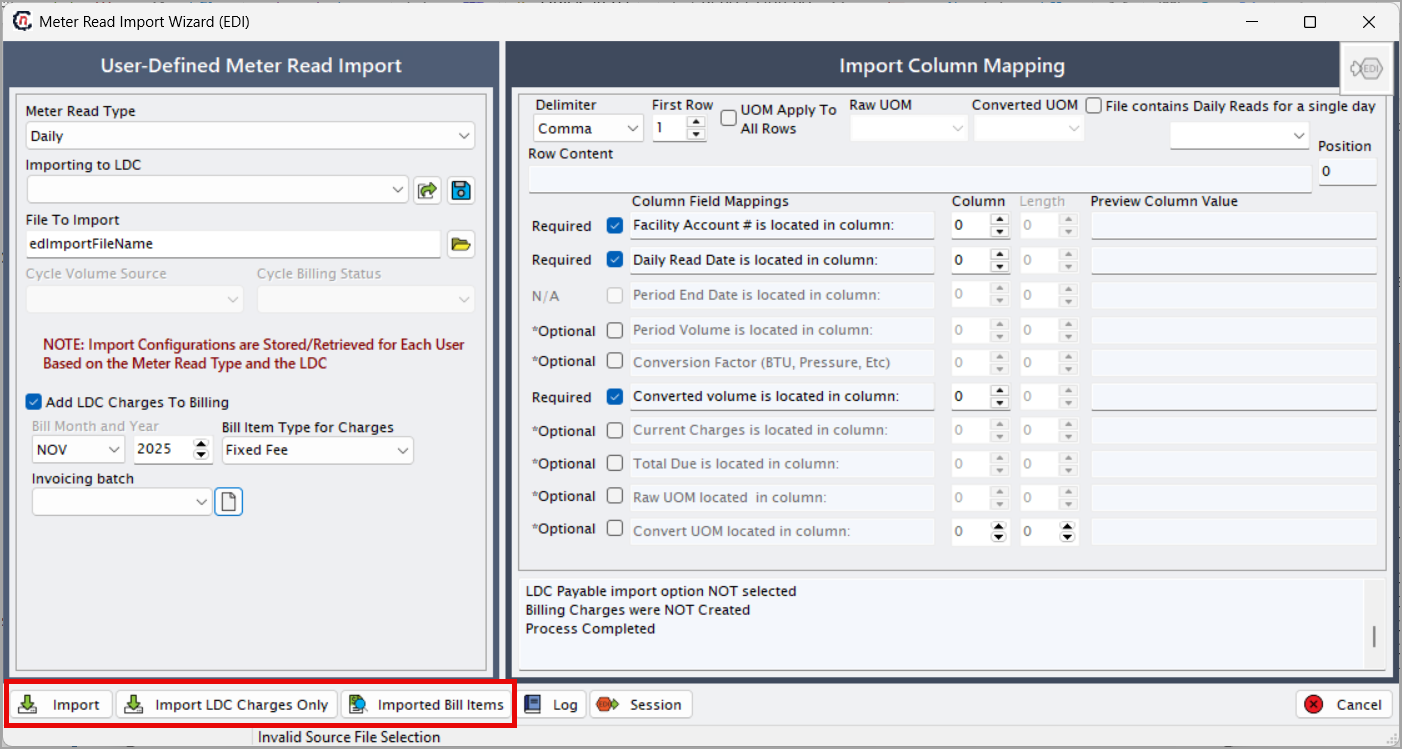
- Click Import to begin processing the file.
-
If needed, use Import LDC charges only and Import bill items for LDC charge-specific and billing item imports.
Step 5: Review import status and error logs
- Click the Log button to view import results.
-
Click the Session button to open the EDI Session History screen and review errors and detailed logs.
Summary
The Meter read import wizard provides a structured process for importing daily and monthly usage files. It supports accurate data mapping, validation, and logging to ensure reliable billing, reporting, and downstream workflows.