Sales activity analysis
In natural gas business, understanding how sales activities progress from prospecting to active service is critical for operational planning, forecasting, and compliance. Sales teams, operations, and billing users often need visibility into facility enrollments, EDI status, campaign participation, and customer onboarding progress across a given period. Without a consolidated view, it becomes difficult to identify delays, enrollment failures, or incomplete transitions.
The Sales Activity Analysis screen provides a centralized, query-driven view of sales-related activity across end users and facilities. It allows users to analyze enrollment progress, facility status, rate participation, and EDI milestones over time. This screen is commonly used for sales pipeline monitoring, operational readiness checks, enrollment troubleshooting, and audit reporting.
Prerequisites
Before working with the Sales Activity Analysis screen, ensure the following prerequisites are met:
- The user has view permissions for the Sales Activity Analysis screen.
- The LDC and LDC pools are configured and active.
- End users and facilities exist in the system.
- Sales campaigns, rate plans, and EDI configurations are defined.
- Enrollment and facility status data exists for the selected period.
Procedure to analyze sales activity
Step 1: Navigate to the Sales Activity Analysis screen
- Log in to the nGenue application.
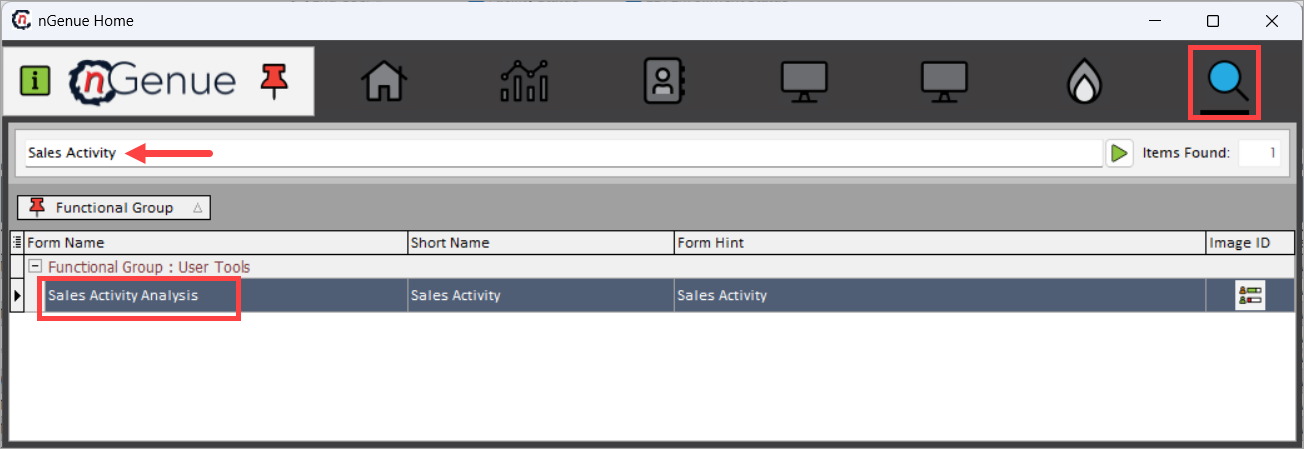
- Click the Search icon and enter Sales Activity in the search bar.
-
Double-click Sales Activity Analysis to open the Sales Activity Analysis (User Tools) screen.
-
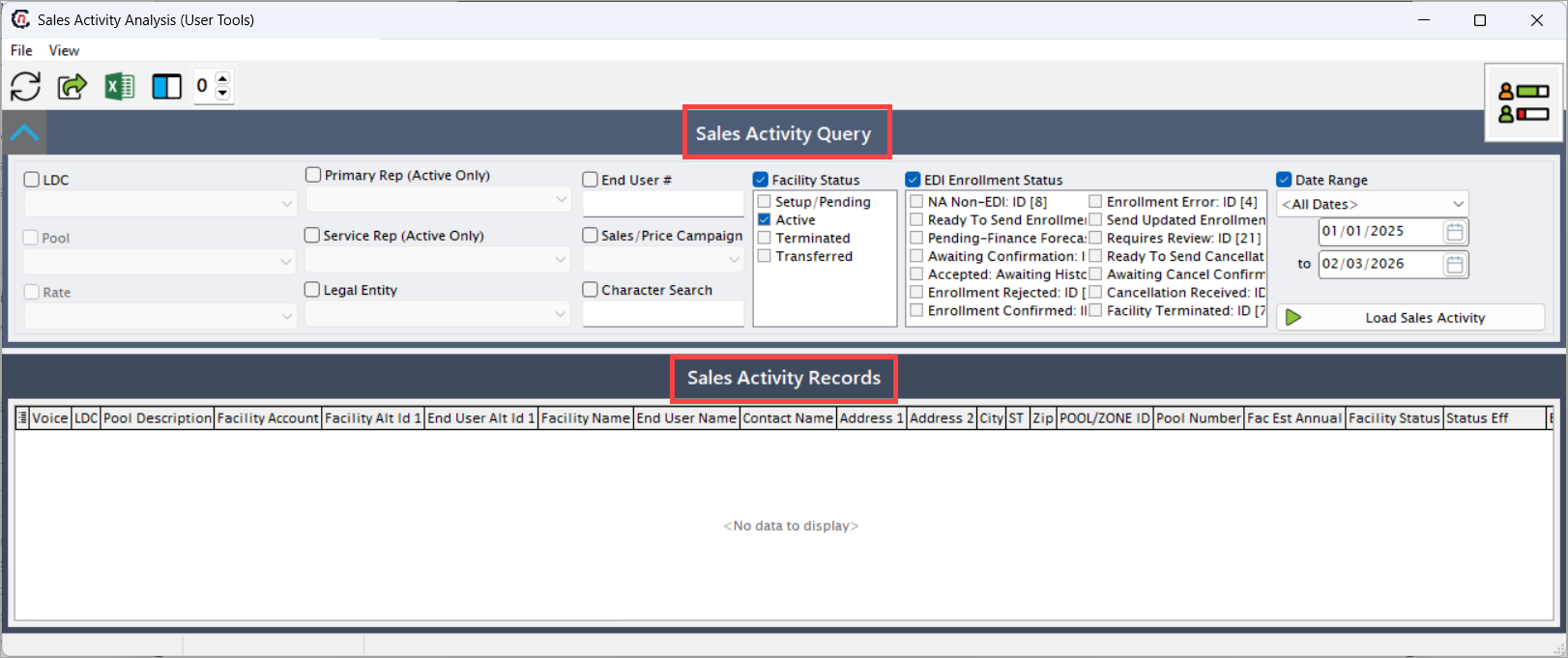
The screen is divided into two sections:
- Sales Activity Query: This section filters and retrieves relevant sales activity records.
- Sales Activity Records: This section displays the retrieved data. based on the filters applied.
Step 2: Define sales activity query criteria
Use the Sales Activity Query section to filter and retrieve relevant sales activity records.
| Fields | Description |
|---|---|
| LDC | Selects the Local Distribution Company under which sales activity is analyzed. |
| Pool | Filters sales activity by pool, if applicable. |
| Rate | Filters records by rate class or rider (for example, Residential). |
| Primary Rep (Active Only) | Filters records based on the assigned primary sales representative. |
| Service Rep (Active Only) | Filters records by service representative responsible for the account. |
| Legal Entity | Filters records by associated legal entity or customer group. |
| End User # | Filters sales activity for a specific end user number. |
| Sales / Price Campaign | Filters activity associated with a specific sales or pricing campaign. |
| Character Search | Allows free-text search across customer-related fields. |
Step 3: Filter by facility and enrollment status
Use the status sections to further refine the scope of analysis.

Facility status
| Options | Description |
|---|---|
| Setup / Pending | Includes facilities that are in setup but not yet active. |
| Active | Includes facilities that are actively enrolled and operational. |
| Terminated | Includes facilities that have been terminated. |
| Transferred | Includes facilities that have been transferred between pools or rate plans. |
EDI enrollment status
| Options | Description |
|---|---|
| NA Non-EDI | Facilities not enrolled in EDI processes. |
| Ready to Send Enrollment | Enrollment is ready to be transmitted. |
| Pending – Finance Forecasts | Enrollment pending financial validation. |
| Awaiting Confirmation | Enrollment sent and awaiting confirmation. |
| Accepted – Awaiting History | Enrollment accepted but pending historical processing. |
| Enrollment Rejected | Enrollment rejected by the LDC or counterparty. |
| Enrollment Confirmed | Enrollment successfully completed. |
| Enrollment Error | Enrollment encountered processing errors. |
| Send Updated Enrollment | Updated enrollment pending transmission. |
| Requires Review | Enrollment requires manual review. |
| Ready to Send Cancellation | Cancellation request ready to be sent. |
| Awaiting Cancellation Confirmation | Cancellation sent and awaiting confirmation. |
| Cancellation Received | Cancellation confirmed by the counterparty. |
| Facility Terminated | Facility has been terminated post-enrollment. |
Step 4: Define date range and load results
| Fields | Description |
|---|---|
| Date Range | Defines the start and end dates for which sales activity is analyzed. |
| Load Sales Activity | Executes the query and loads matching records into the results grid. |
Step 5: Review sales activity records
The Sales Activity Records grid displays the retrieved data. Each row represents a facility-level sales activity record.
| Fields | Description |
|---|---|
| Voice | Unique identifier associated with the sales or enrollment record. |
| LDC | LDC associated with the facility. |
| Pool Description | Pool under which the facility is grouped. |
| Facility Account | Account number associated with the facility. |
| End User Alt ID | Alternate identifier for the end user. |
| Facility Name | Name of the facility. |
| End User Name | Legal name of the end user. |
| Contact Name | Primary contact associated with the sales activity. |
| Address 1 / Address 2 | Facility service address. |
| City / State / Zip | Geographic location of the facility. |
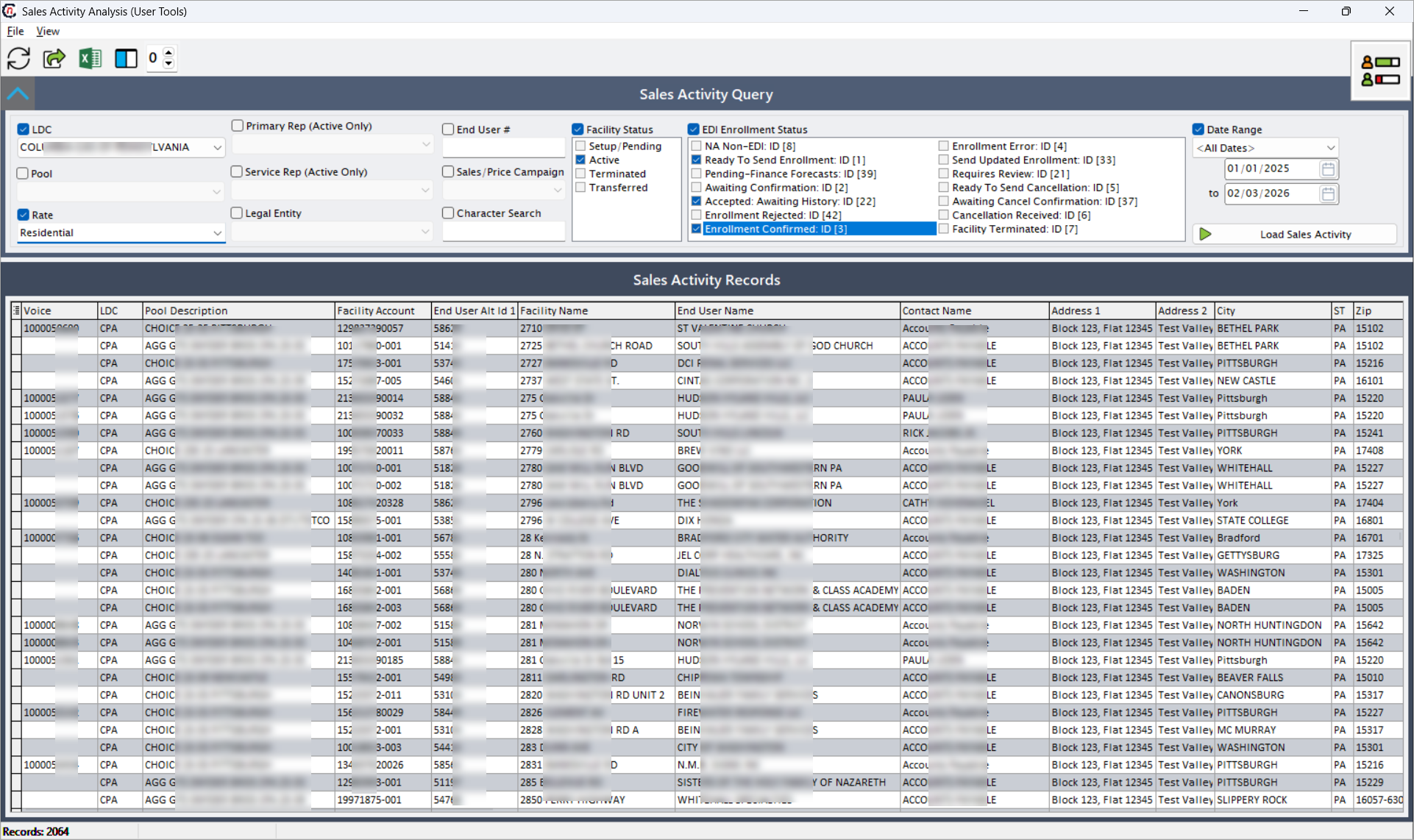
The grid supports sorting, filtering, and export for reporting and audit purposes.
Key points
- Sales activity analysis provides visibility into the full sales and enrollment lifecycle.
- Facility and EDI status filters help identify onboarding delays and issues.
- Date range selection supports historical and trend analysis.
- This screen is commonly used by sales, operations, and compliance teams.
- Exported data is often used for pipeline reporting and audit support.
Summary
The Sales Activity Analysis screen delivers a comprehensive and operationally focused view of sales and enrollment activity within nGenue. By combining flexible filtering, detailed status tracking, and facility-level visibility, this screen enables teams to monitor sales progress, troubleshoot enrollment issues, and ensure operational readiness across the customer lifecycle.