Assign a security group to users
The Assign security group to users screen allows administrators to associate users with specific security groups based on their job roles and responsibilities. Assigning users to appropriate security groups ensures that each user has the necessary access permissions to perform their tasks efficiently while maintaining system security and compliance.
This outlines step-by-step procedure to assign users to a security group in the nGenue application.
Prerequisites
Before working on the Security group - assign users screen, ensure the following prerequisites are met:
- Ensure the nGenue application is installed and use valid login credentials to log into the application.
- Security users and Security groups are configured before assigning users to a security group.
Procedure to assign users to a security group
Step 1: Navigate to the Security group - assign users screen
- Log in to the nGenue application.
- Click the Search icon and enter security group – assign users in the search bar.
-
Double-click Security group - assign users to open the corresponding screen.
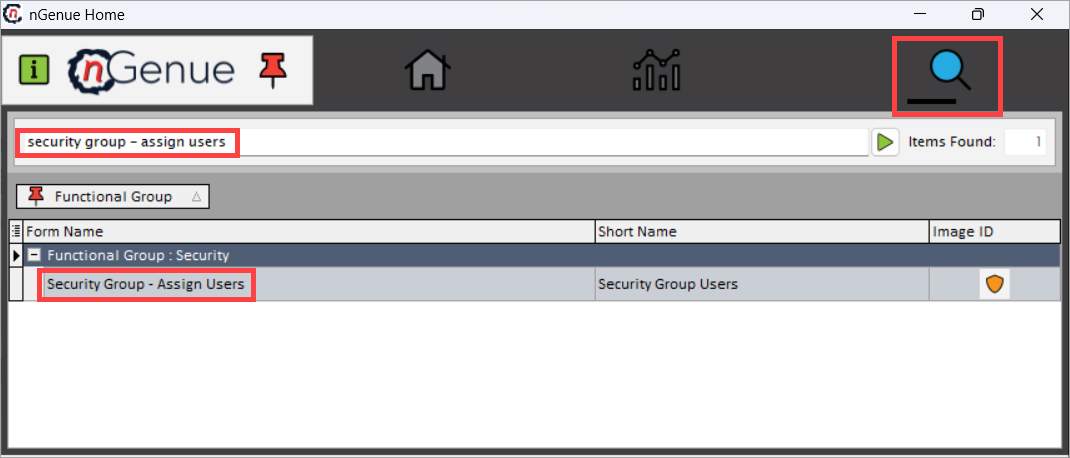
Step 2: Assign users to a security group
-
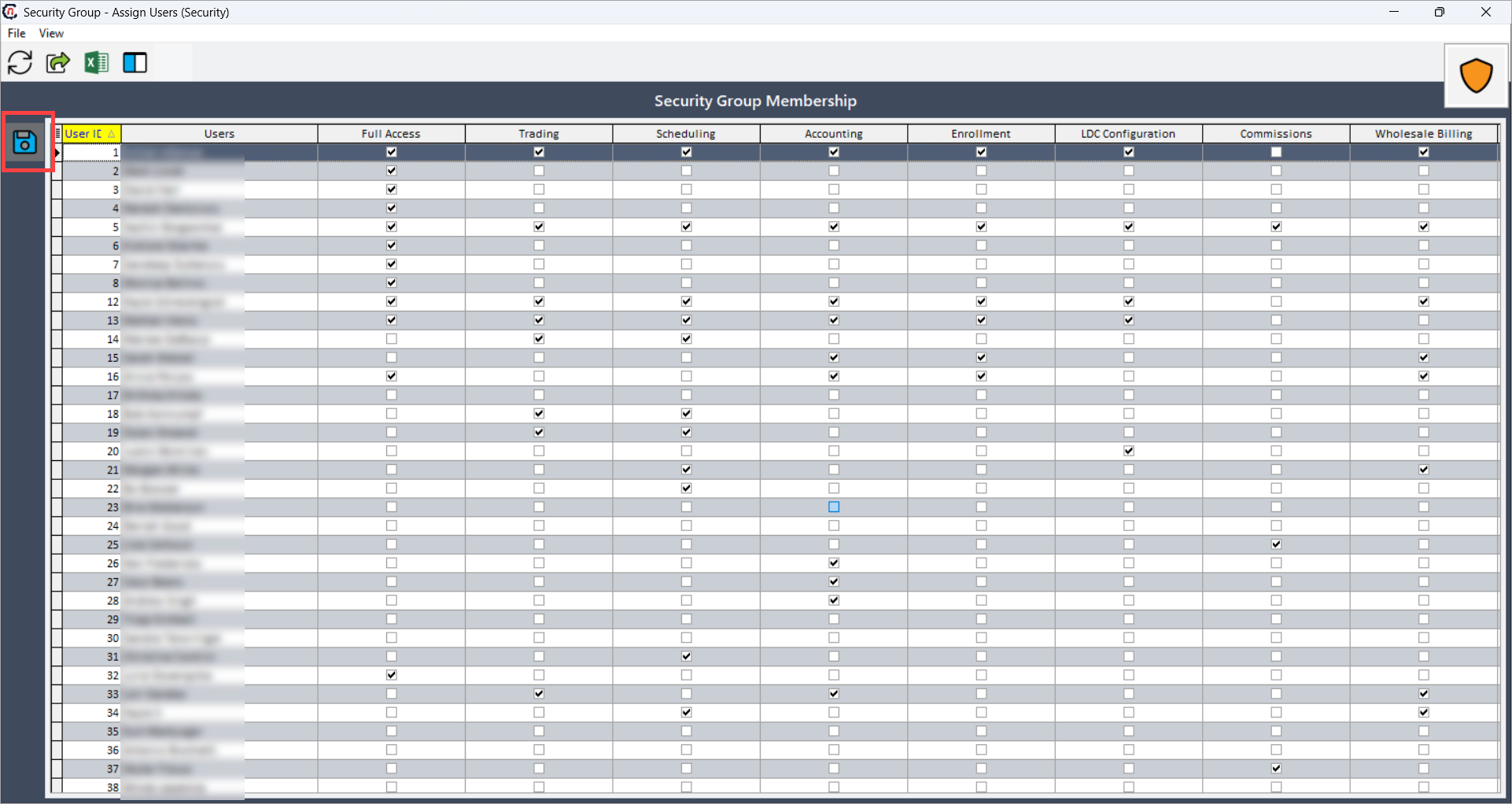
In the Assign users screen:
- Rows represent usernames.
- Columns represent security groups.
-
Select the checkbox to add the user to the corresponding security group.
- Deselect the checkbox to remove the user from the security group.
-
Click the Save group membership icon to save the changes.
-
After you assign a user to a specific security group, the user is listed under the Users tab of that group in the Security groups - configuration screen.
Note
Users assigned to the Full access security group have complete access to all screens in the application.
Summary
The Assign users to security group screen allows administrators to manage user access by linking users to the appropriate security groups. This ensures that each user has access to the screens and functions relevant to their role within the nGenue application.