Review bill messages
Bill messages are system-generated or utility-provided informational notes associated with a customer’s billing activity. These messages often originate from EDI transactions received from the Local Distribution Company (LDC) and may contain important billing alerts, exceptions, adjustments, compliance notices, or customer-specific updates that impact how a bill is calculated or interpreted.
Bill messages screen allows to filter, review, and validate these messages before billing is finalized. Bill messages are imported into nGenue through EDI processing and stored against the relevant end user, facility, or LDC. During billing, these messages are evaluated and may trigger billing exceptions or require follow-up actions.
Prerequisites
Before working on the Bill messages (EDI) screen, ensure the following prerequisites are met:
- Ensure the nGenue application is installed and use valid login credentials to log into the application.
- Configure the user permissions including User type, Security user, Security group, Security assign user, and Security assign permissions in their respective screens to enable access to the Bill messages (EDI) screen.
- Ensure LDC, Facilities, End user accounts are properly configured and active.
- Ensure the EDI billing data must be imported for the specified LDC.
Procedure to review bill messages
Step 1: Navigate to the Bill messages screen
- Log in to the nGenue application.
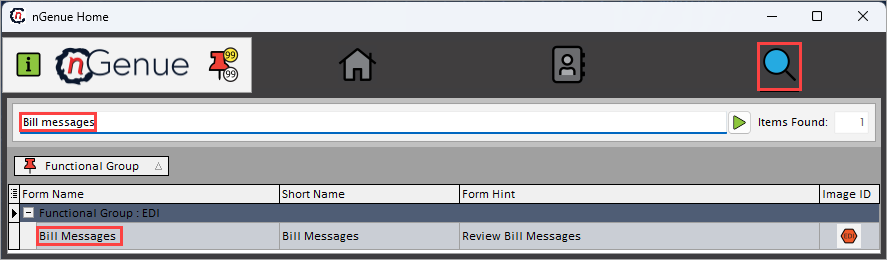
- Click the Search icon and enter Bill messages in the search bar.
-
Double-click the Bill messages from the search results to open respective screen.
-
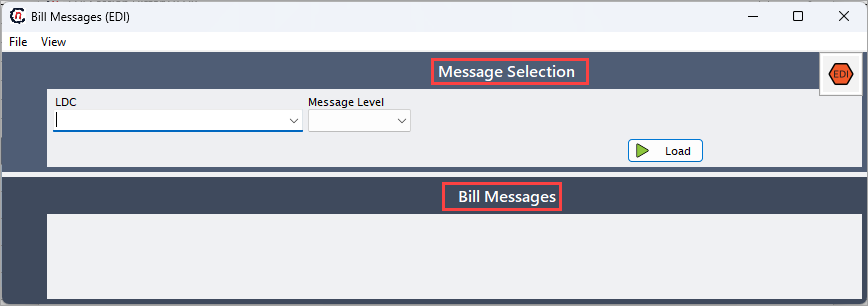
Bill messages (EDI) screen has two sections:
- Message selection: Provides filtering options to retrieve bill messages.
-
Bill messages: Allows to specify custom message and to review active messages and bill message history associated with selected LDC and message level.
Step 2: Load bill messages
-
In the Message selection section, specify the filtering criteria:
- LDC: Select the LDC whose billing messages you want to review.
- Message level: Select the category of messages such as Customer, Rate code, Supplier. If Customer is selected, End user and Facility must be specified, if rate code is selected then rate code must be specified.
- End users (Active only): Select the active end user associated with chosen LDC.
- Facility (Active only): Select the facilities linked to the specific LDC.
- Rate code: Select the rate code linked to the specific LDC.
-
Click Load to display bill messages that matches the selected criteria.

Step 3: Review and manage bill messages
- In the Bill messages section, under the Active messages the currently used bill messages will be displayed,
- Under Custom messages, provide the custom message and select the bold text checkbox to make the text bold and duration (in months) which ranges from 1-2 months and click Send to add or update message schedule and click Close to the close the bill messages screen with unsaved changes.
-
Under the Bill message history, the bill messages added and updated will be displayed with related information captured in the column fields for each line item as outlined in the table below:
Fields Description Bill message ID Specifies the type of export performed. Name Specifies the timestamp the file was exported. Action type ID Specifies the row of the exported text. Account number It is identifier assigned to the exported row. Message description 1-4 Specifies the identifier for the export session. Price change trans ID Specifies the name of the file created. Schedule action ID Indicates the table to which the export was targeted (if applicable). Duration It is a unique identifier of the record referenced in the text row. Created date Specifies the timestamp the file was exported. Created by Specifies the row of the exported text. Highlight method It is identifier assigned to the exported row. Transaction status Specifies the timestamp the file was exported. Transaction date Specifies the row of the exported text. Message effective date It is identifier assigned to the exported row. Message expiry date It is identifier assigned to the exported row. 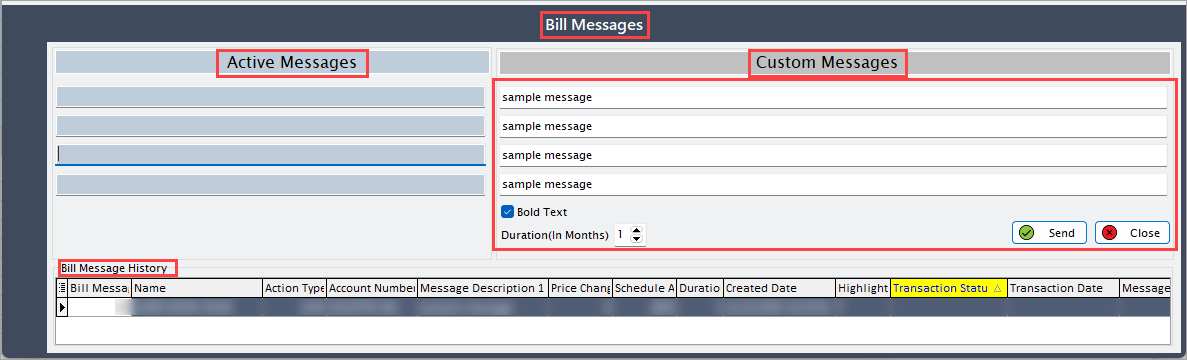
Summary
The Bill messages screen allows to review utility-provided billing messages imported through EDI. These messages helps validate billing accuracy and correctness before invoice are generated or distributed, additionally mentions billing exceptions and aids in follow-up actions and informed actions and communications, supports compliance and audit workflows.