Configuring futures deal blotter
The Futures Deal Blotter screen is used to create, manage, and book futures deals within the Deal Management module. It serves as a workspace for traders to generate pending futures contracts, validate trade details, and finalize deals with appropriate trade statuses such as Active or What-If.
This screen streamlines the process of futures deal booking by automatically populating trade data from selected templates and allowing for validation of key parameters like contract month, clearing broker, and pricing method.
The primary purpose of the Futures Deal Blotter configuration is to:
- Create and track futures contracts for a selected time frame.
- Associate deals with predefined templates, strategies, and counterparties.
- Auto-generate pending futures deal entries for review and approval.
- Facilitate booking of futures contracts with defined trade statuses.
- Maintain audit traceability and ensure alignment with trading and risk management workflows.
Prerequisites
Before configuring futures deals in the Futures Deal Blotter screen, ensure the following prerequisites are met:
- The user have the add or modify permissions for the Futures Deal Blotter screen.
- Relevant counterparties and clearing brokers are configured and active in the system.
- Futures templates are predefined in the Deal Management screen. This is done by selecting the This deal is a template checkbox while creating a futures deal.
- The contract months and contract sizes are defined in the Global Settings screen.
Procedure to configure futures deals
Step 1: Navigate to the Futures Deal Blotter screen
- Log in to the nGenue application.
- Click the Search icon and enter Futures deal.
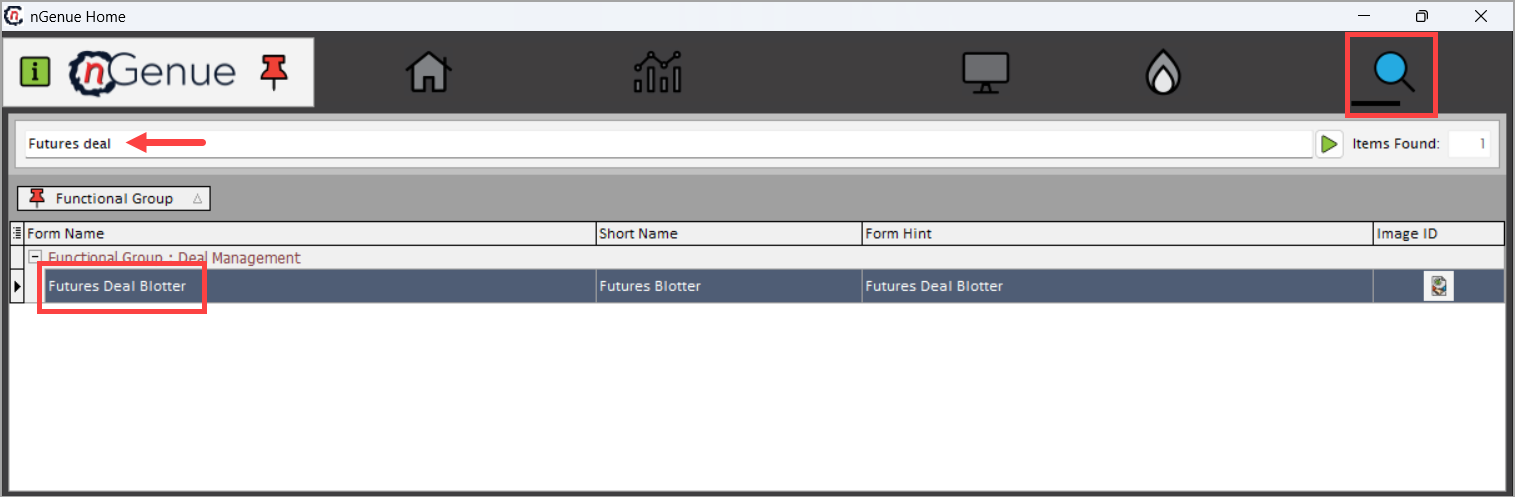
- Double-click Futures Deal Blotter to open the Futures Deal Blotter (Deal Management) screen.
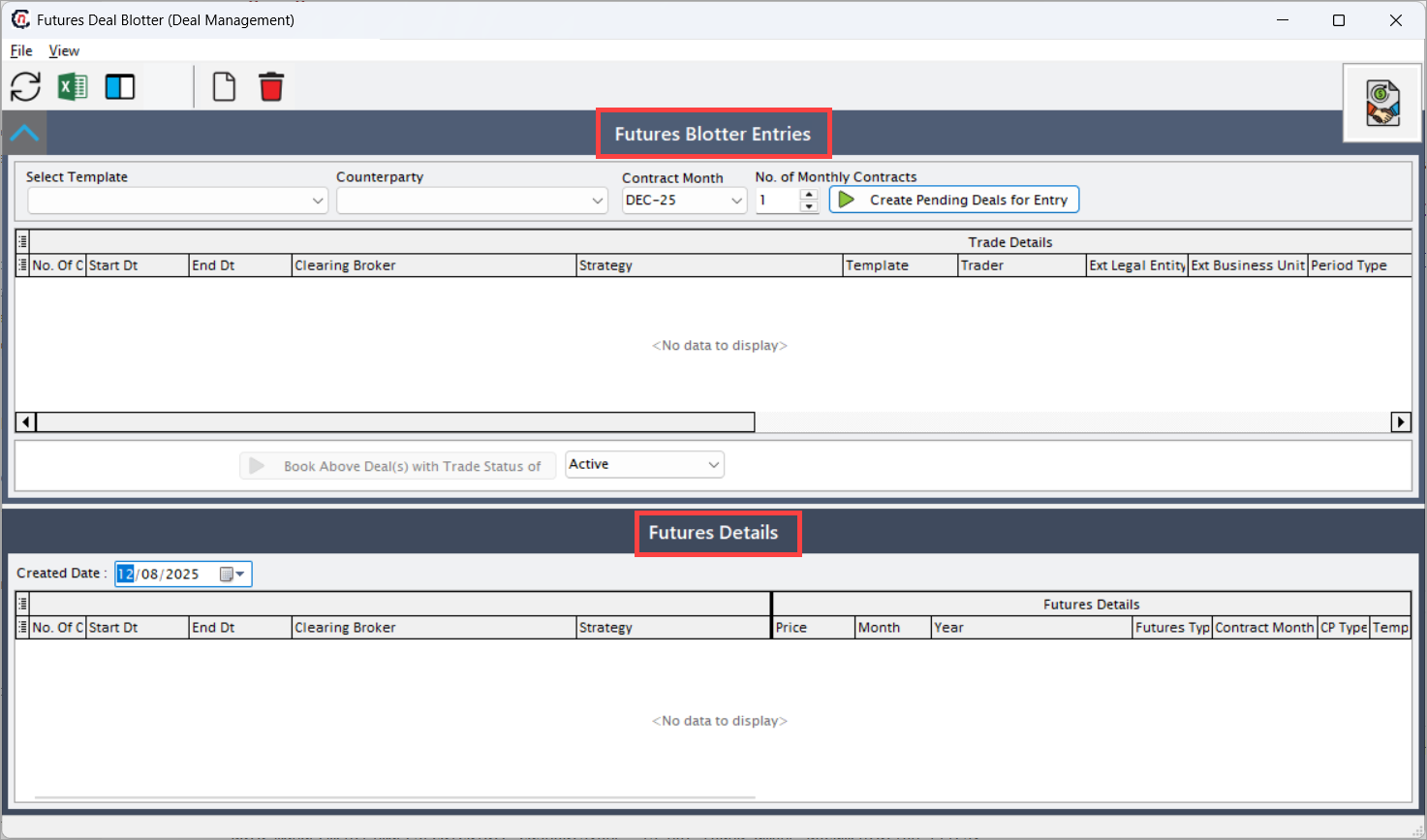
- The Futures Deal Blotter (Deal Management) screen consists of two major sections:
- Futures Blotter Entries: Displays pending futures contracts available for review and booking.
- Futures Details: Displays detailed information of booked futures deals filtered by created date.
Step 2: Select a deal template and filters
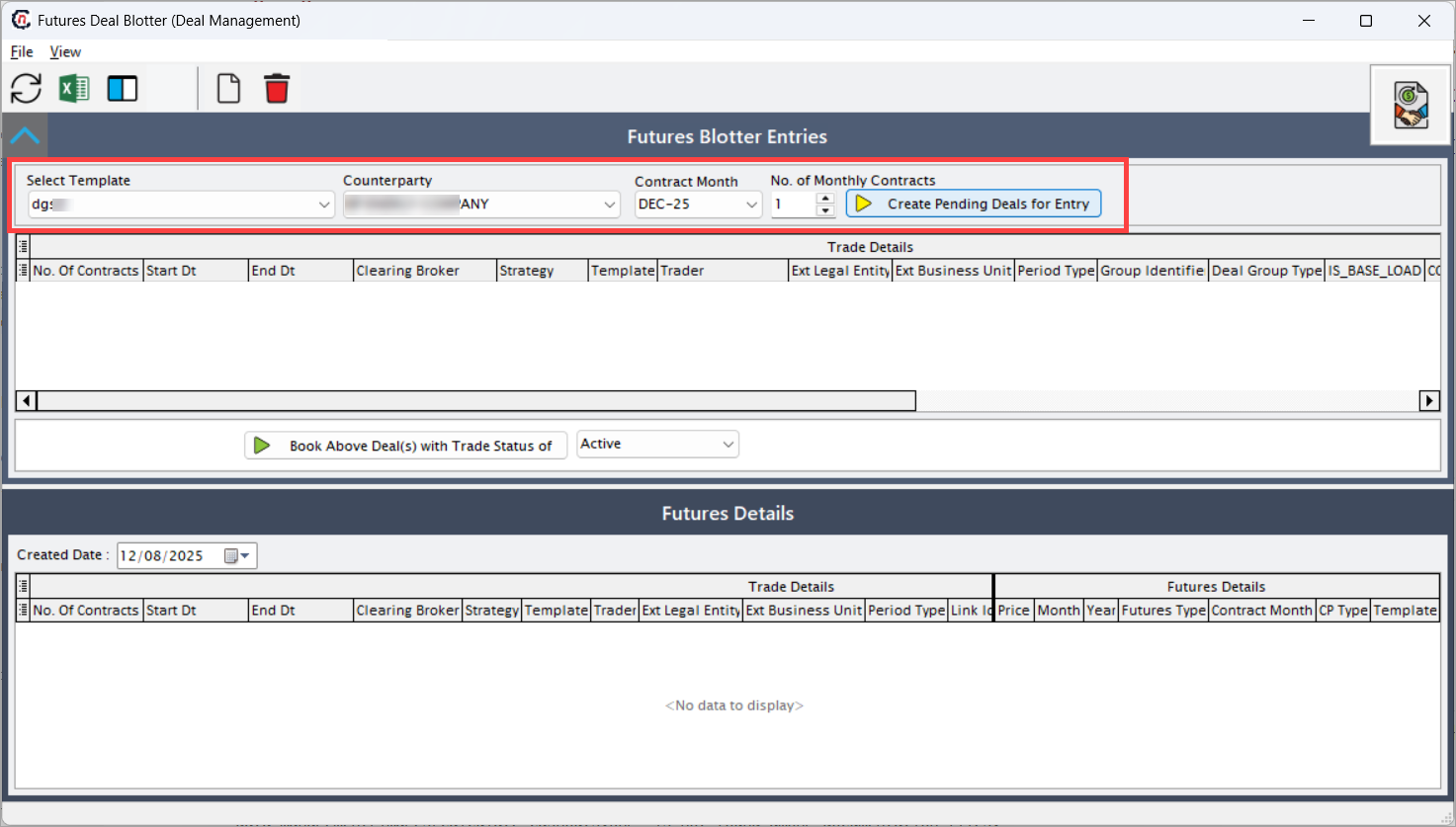
The Futures Blotter Entries section allows you to define filters and generate pending futures deals.
| Fields | Description |
|---|---|
| Select Template | Lists all predefined futures templates created in the Deal Management screen. Each template defines key deal attributes such as contract month, price method, and contract size. |
| Counterparty | Dropdown to select the counterparty involved in the futures contract. Displays all active counterparties available in the system. |
| Contract Month | Dropdown that specifies the contract month for the futures deal. It lists all active contract months configured in the system, such as DEC-25 or JAN-26. |
| No. of Monthly Contracts | Field used to specify the number of monthly contracts to be created within the defined date range. |
| Create Pending Deals for Entry | Button used to generate pending futures deal entries based on the selected template, counterparty, and contract month. When clicked, the system auto-populates the Futures Blotter Entries grid with generated records. |
Step 3: Review pending futures blotter entries
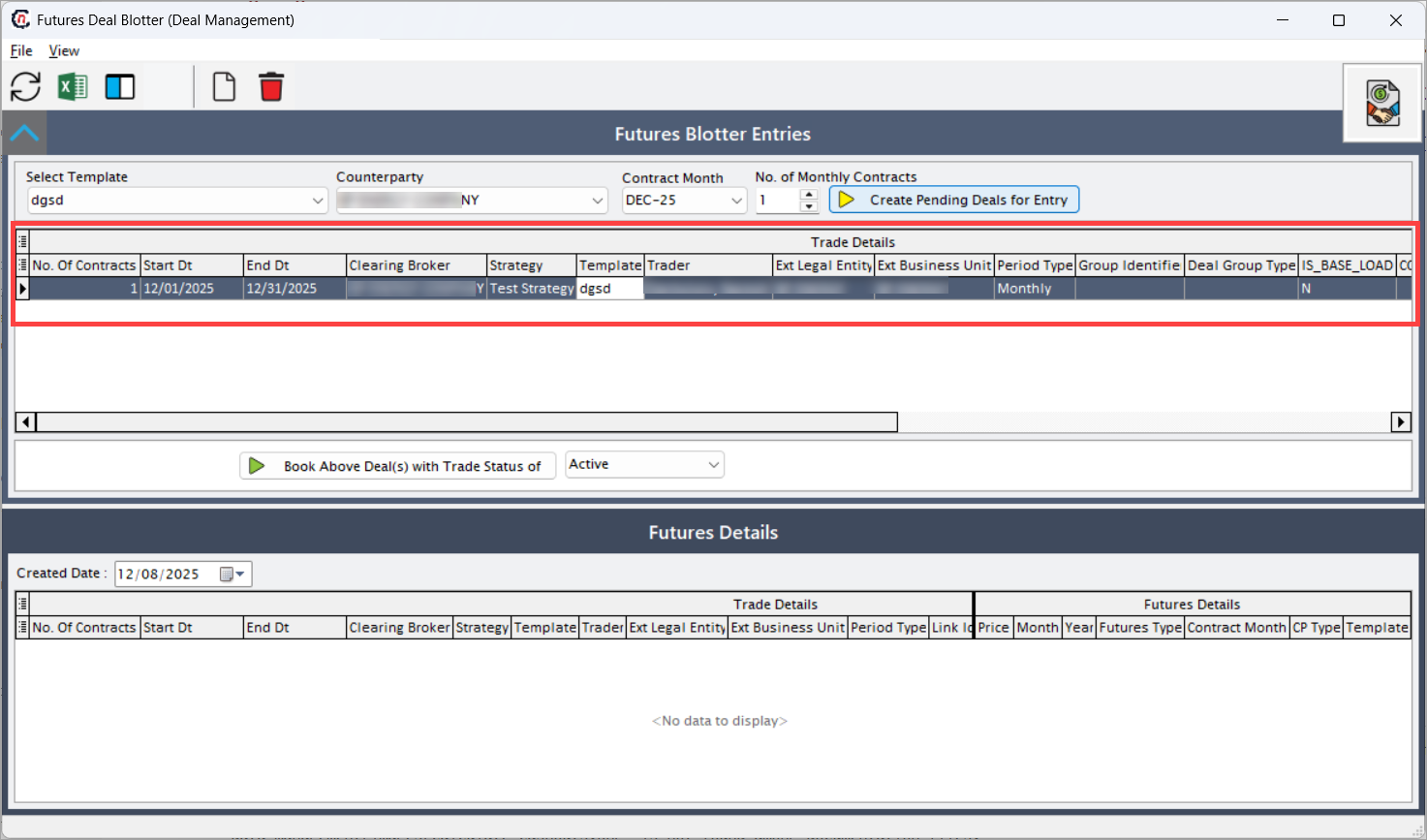
Once pending deals are generated, they appear in the Futures Blotter Entries grid for verification.
| Fields | Description |
|---|---|
| No. of Contracts | Displays the total number of futures contracts created for the selected counterparty and contract month. |
| Start Dt | Represents the start date of the futures contract. |
| End Dt | Represents the end date of the futures contract. |
| Clearing Broker | Displays the clearing broker responsible for clearing the trade through the exchange. |
| Strategy | Displays the strategy applied to the deal (e.g., hedge or trading). |
| Template | Displays the futures template name used for deal creation. |
| Trader | Displays the trader name associated with the deal. |
| Ext Legal Entity | Displays the external legal entity linked to the counterparty or clearing broker. |
| Ext Business Unit | Displays the business unit responsible for executing the trade. |
| Period Type | Specifies the trading period frequency. Options include: • Daily – Contract is executed or rolled daily. • Monthly – Contract is maintained at a monthly level. • Quarterly – Contract spans over a quarterly period. |
| Group Identifier | Displays a unique ID grouping related trades or multi-leg contracts. |
| Deal Group Type | Indicates the type of deal grouping such as Hedge Group, Arbitrage, or Spread. |
| IS_BASE_LOAD | Indicates whether the contract represents base load trading volume. Options include: • Y – Contract represents a base load position. • N – Contract does not represent base load. |
| CONTRACT_SIZE | Displays the standard size of each futures contract as defined by the exchange. |
| Price Method | Defines how the price is determined for the futures contract. Options include: • Fixed – Uses a predetermined price fixed at the time of trade creation. • Floating – Price varies based on a reference market or exchange index. • Average – Uses an average of settlement prices across a defined period. |
| Deal Source | Indicates the origin of deal creation. Options include: • Manual – Created directly by the trader. • Imported – Uploaded via interface or external file. • System Generated – Automatically created by a batch or automated rule. |
| Price | Displays the price assigned to the futures contract. |
| Month | Displays the trading month associated with the contract. |
| Year | Displays the trading year associated with the contract. |
Step 4: Book futures deals
After validating the pending entries, users can book futures deals.
- Review all pending deal entries for accuracy.
-
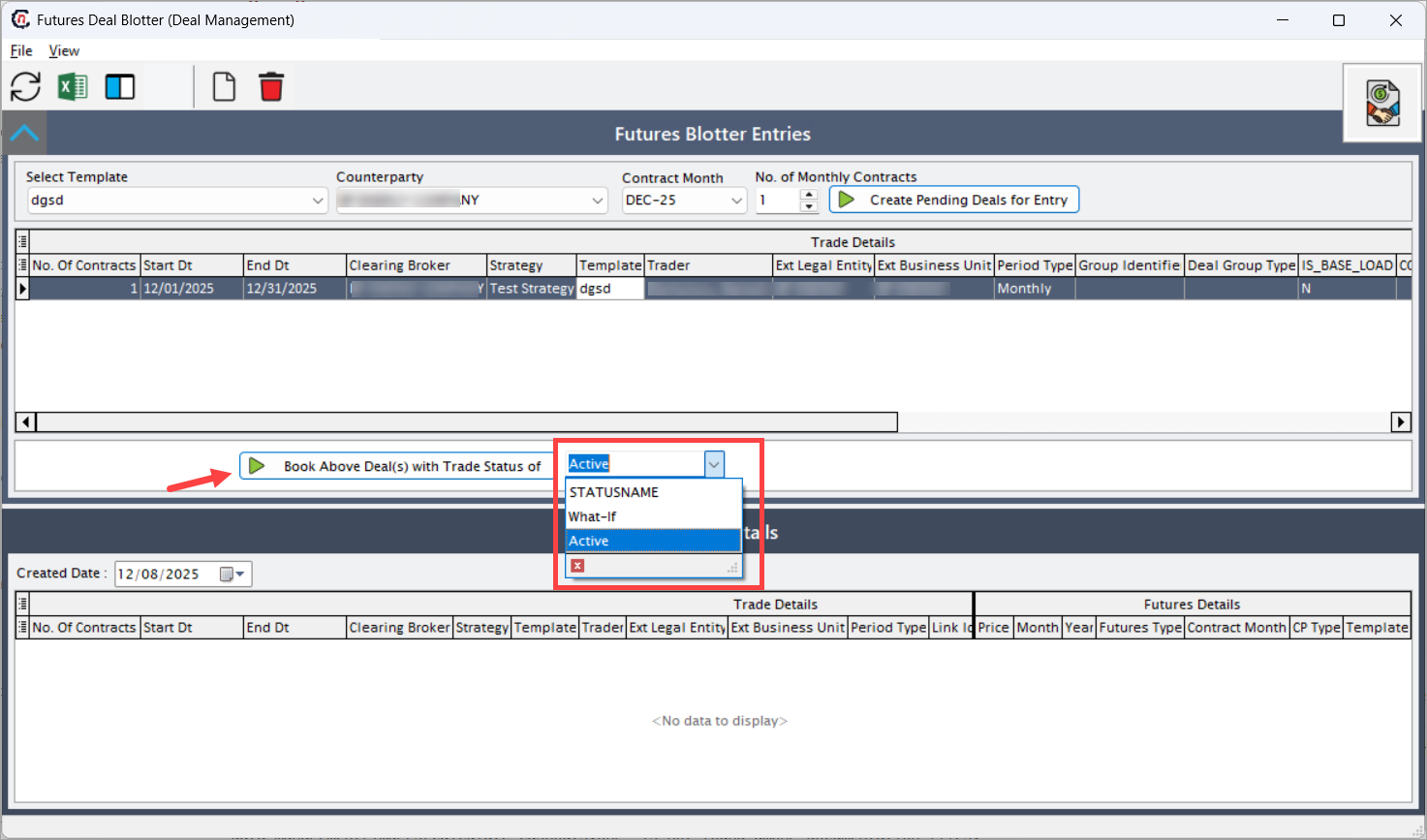
From the Book Above Deal(s) with Trade Status of dropdown, select the trade status.
- Active: Marks the deal as live and executable. Active deals are included in risk reports and exposure tracking.
- What-If: Marks the deal as simulated or hypothetical. What-If deals are used for forecasting and do not affect actual exposures.
-
Click the Play (▶) button to book the selected deals. Once booked, they appear in the Futures Details section at the bottom of the screen.
Step 5: Review booked futures deals
The Futures Details section displays all futures deals that have been booked for the selected created date. This includes trade and pricing details for finalized contracts.
| Fields | Description |
|---|---|
| Created Date | Displays the date on which the futures deal was created or booked. |
| No. of Contracts | Displays the number of futures contracts booked for the selected period. |
| Start Dt | Represents the effective start date of the booked deal. |
| End Dt | Represents the end date of the booked deal. |
| Clearing Broker | Displays the clearing broker name associated with the booked trade. |
| Strategy | Displays the strategy applied to the futures contract. |
| Template | Displays the template name from which the futures contract was derived. |
| Trader | Displays the name of the trader who executed the deal. |
| Ext Legal Entity | Displays the external legal entity assigned to the trade. |
| Ext Business Unit | Displays the external business unit executing the trade. |
| Period Type | Defines the period type for the trade (Daily, Monthly, Quarterly). |
| Link Identifier | Displays a unique identifier linking this deal with other associated trades. |
| Deal Link Type ID | Displays the type of linkage with other trades, such as Spread, Calendar Roll, or Cross-Month Hedge. |
| IS_BASE_LOAD | Indicates whether the contract represents a base load position (Y/N). |
| CONTRACT_SIZE | Displays the standardized size of the contract as defined by the exchange. |
| Price Method | Displays the selected price method for the booked deal: Fixed, Floating, or Average. |
| Price | Displays the assigned or settled price for the futures contract. |
| Month | Displays the trading month. |
| Year | Displays the trading year. |
| Futures Type | Displays the classification of the futures contract, such as Financial Futures, Commodity Futures, or Energy Futures. |
| Contract Month | Displays the specific contract month selected at the time of booking. |
| CP Type | Displays the counterparty type, such as Agent, Broker, or End User. |
| Template | Displays the name of the template under which the deal was generated. |
If no deals are found for the selected created date, the message No data to display is shown.
Key points to remember
- Ensure the contract month aligns with the template configuration and trading calendar.
- Date ranges must not overlap with existing active deals for the same counterparty.
- The No. of Monthly Contracts should reflect the number of recurring contracts to be generated for the selected period.
- Verify that the Clearing Broker and Price Method are correctly assigned before booking.
- Active deals flow into valuation and exposure reports, while What-If deals remain in simulation mode.
Summary
The Futures Deal Blotter screen provides a comprehensive interface for creating and managing futures contracts. It enables traders to generate pending futures deals, validate them using predefined templates, and book finalized trades with full traceability.
After configuration, the details from the Futures Deal Blotter are also reflected in the Mark to Market screen to facilitate mark-to-market value calculations.