Manage and track period usage history
The Periodic usage history (Monthly/Cycle read history) screen is a core tool for managing customer consumption data. It provides the ability to create new usage records or review historical usage information for an end user or facility. This screen consolidates key details such as Local Distribution Company (LDC), end user, facility, facility account, meter information, consumption volumes, billing status, billing period, pricing, and related identifiers.
The functionality is primarily used by the billing team to validate, reconcile, and process customer consumption data for accurate billing and reporting. It also supports operational transparency by ensuring that all usage information is tracked consistently across billing cycles.
Process steps
Step 1: Access the period usage history screen
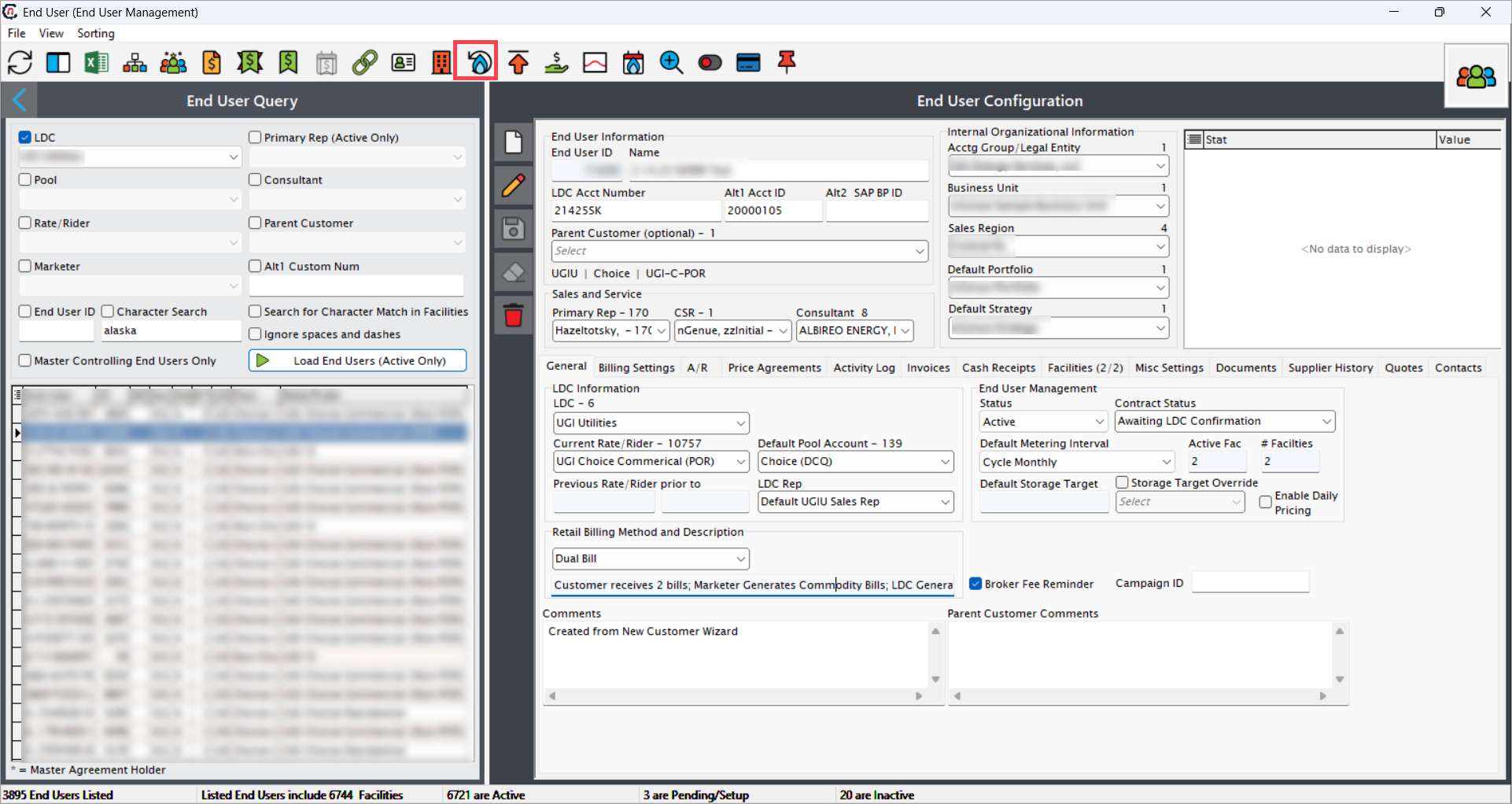
- Navigate to the End user screen.
- Select the End user, then click on the Period usage history icon.
-
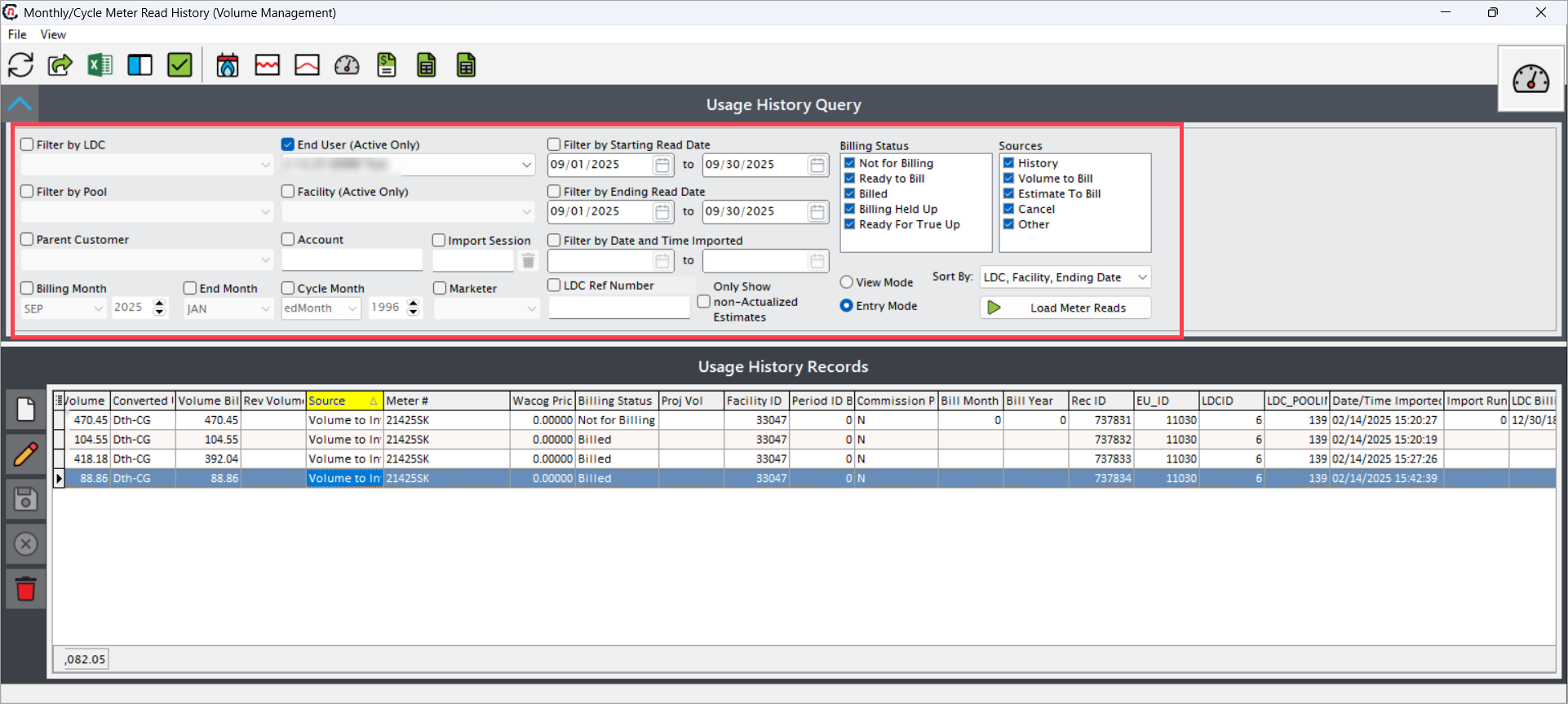
Select the Facility (Active only) field when creating usage data in the Usage history query section. To view usage data, select any one field. The table below lists the available fields and their descriptions:
Fields Description Filter by LDC Select the LDC from the dropdown (configured in LDC screen). End user (Active only) Choose the active end user (configured in End user screen). Filter by pool Select the LDC pool (configured in LDC Pool screen). Facility (Active only) Choose the active facility (configured in Facility screen). Parent customer Select a parent customer for grouping related usage data. Account Filter by a specific account number. Import session Filter by import session identifier. Billing month/End month Define the billing month or end month for the usage data. Cycle month/Cycle year Retrieve data by billing cycle month and year. Marketer Filter usage history by marketer. Filter by starting read date Define the starting meter read date for usage history. Filter by ending read date Define the ending meter read date for usage history. Filter by date and time imported Filter records by import date and time. LDC Ref number Search by LDC reference number. only show non-actualized estimates Checkbox to show only non-actualized estimate records. Billing status Not for billing: Excludes the record from billing.
Ready to bill: Marks the record as eligible for billing generation.
Billed: Marks the record as already processed for billing.
Billing held up: Temporarily holds the record from billing.Source Volume to invoice: Generate billing based on metered usage.
History: View past billing and usage records.
Cancel: Stop the current billing process.
Estimated billing: Generate billing based on estimated usage.
Miscellaneous: Apply billing adjustments or other non-standard charges.View mode Choose the mode for viewing usage data. Entry mode Select how new data entries are handled. Sort by Define the sorting criteria for displayed usage data. -
Click Load meter reads to display the results.
Step 2: Create a periodic usage history record
-
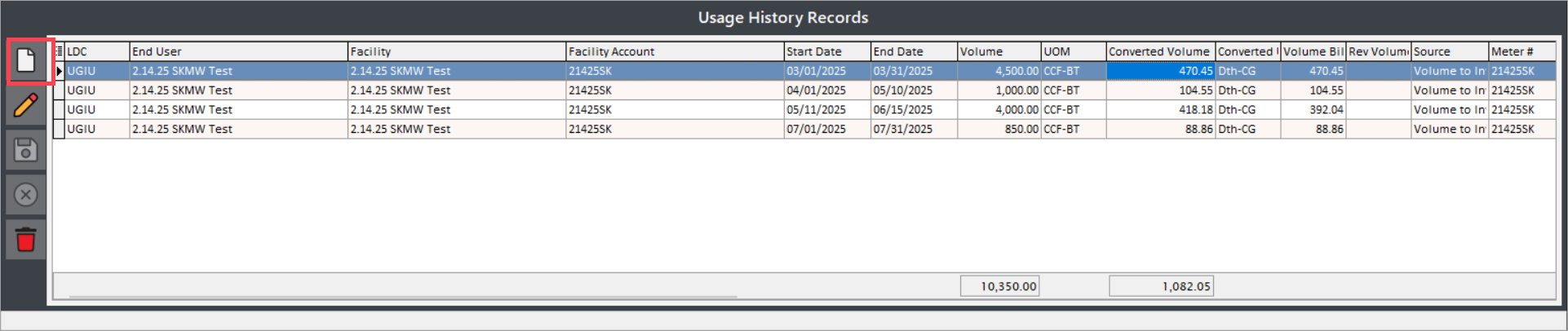
Click the Add meter read record icon.
Note
The Facility (Active only) field must be selected in the Usage history query section when creating usage data.
-
Enter the required details as shown below:
Fields Description Volume Enter total volume consumption for effective period. UOM Select the Unit of Measure (UOM) (for example, therms, MCF, kWh) used for volume. Converted volume Specify usage volume converted into a standard unit for reporting consistency. Converted UOM Specify the UOM applied to the converted volume. Source Volume to invoice: Generate billing based on metered usage.
History: View past billing and usage records.
Cancel: Stop the current billing process.
Estimated billing: Generate billing based on estimated usage.
Miscellaneous: Apply billing adjustments or other non-standard charges.Billing status Not for billing: Excludes the record from billing.
Ready to bill: Marks the record as eligible for billing generation.
Billed: Marks the record as already processed for billing.
Billing held up: Temporarily holds the record from billing.Note
Select Volume to invoice from the Source dropdown and set the Billing status to Ready to bill; both selections are mandatory to generate billing.
-
Click Save to add the record.
-
The system automatically populates remaining fields, such as:
Fields Description LDC Identifies the LDC associated with the usage record. End user Displays the customer or account holder linked to the facility. Facility Name or code of the facility where consumption occurred. Facility account Account number assigned to the facility. Start date Beginning date of the usage or billing period. End date Ending date of the usage or billing period. Volume Total consumption volume recorded. Volume billed Consumption volume billed to the customer. Rev volume Revenue volume calculated for billing purposes. Meter # Unique identifier of the meter used to capture the usage. WACOG price Weighted Average Cost of Gas (WACOG) or equivalent unit cost used for billing. Proj Vol Projected consumption volume for forecasting. Facility ID Unique identifier for the facility. Period ID billed Billing period identifier. Commission paid Indicates commission paid on the billed usage. Bill month Billing month associated with the record. Bill year Billing year associated with the record. Rec ID Unique record identifier for tracking. EU_ID Unique identifier of the end user. LDC ID Unique identifier of the LDC. LDC pooling ID Identifier for the pooling group under the LDC. Date/Time imported Timestamp when the record was imported into the system. Import run Identifier of the import batch that processed the record. LDC billing date Billing date as reported by the LDC. LDC read code Code assigned by the LDC for meter read type. True-up Link Reference to adjustments or reconciliations linked to this record. Cycle Mo Utility cycle month for which usage is recorded. Cycle Yr Utility cycle year for which usage is recorded. LDC ref number Reference number assigned by the LDC. End user status Status of the End user (for example, active, inactive). SIC code Standard Industrial Classification (SIC) code for the end user. Review status Indicates if the record has been reviewed (for example, reviewed, pending).
Step 3: View usage history
- Apply the filters in the Usage history query section to define your search.
- Click on Load meter reads.
- The system displays matching usage records with details such as LDC, end user, facility account, meter number, billing status, and volumes with are configured during end user configuration.
- Review and reconcile the displayed records as needed.
The Periodic usage history (Monthly/Cycle read history) screen enables users to create and manage consumption records with precision. By applying filters, entering accurate details, and validating historical data, the billing team can ensure transparent and reliable billing processes. Consistent use of this functionality reduces billing errors, supports compliance, and improves customer trust by maintaining complete and accurate operational records.