Viewing end user review list
The End user review list screen provides a consolidated view of end users and their associated facilities. It allows users to filter and review end user data based on various criteria such as Local Distribution Company (LDC), rate rider, pool, primary representative, and other parameters.
This screen features the following icons:
| Icons | Icons name | Description |
|---|---|---|
 |
View end user details. | Opens the selected end user’s detailed information, including account and contact details. For more information, refer to the End user article. |
 |
View facility details. | Opens the facility details associated with the selected end user, including location and operational data. For more information, refer to the Facility article. |
 |
View address information. | Displays the address information linked to the selected end user or facility. For more information, refer to the Add address to end user or facility article. |
 |
View sales contracts. | Opens the sales contracts associated with the selected end user for review and management. For more information, refer to the Sales contracts article. |
 |
View price agreements. | Displays price agreements related to the selected end user or contract, including terms and pricing details. For more information, refer to the Price agreements article. |
Prerequisites
Before working on the End user review list screen, ensure the following prerequisites are met:
- User permissions: You must configure the security settings including User type, Security user, Security group, Security assign user, and Security assign permissions in their respective screens to ensure you have the required access and permissions for End user review list screen actions.
- LDC: The relevant LDC must exist in the application.
- LDC pool: An LDC pool must be configured to classify customers for efficient billing and distribution.
- LDC rate configuration: An LDC rate class must be defined to categorize customers and establish delivery terms.
- End user: Configure the end user in the system before reviewing end user review list.
- Facility: Add the facility in the system to link it with the end user.
Procedure to view end user review list
Step 1: Navigate to the End user review list screen
- Log in to the nGenue application.
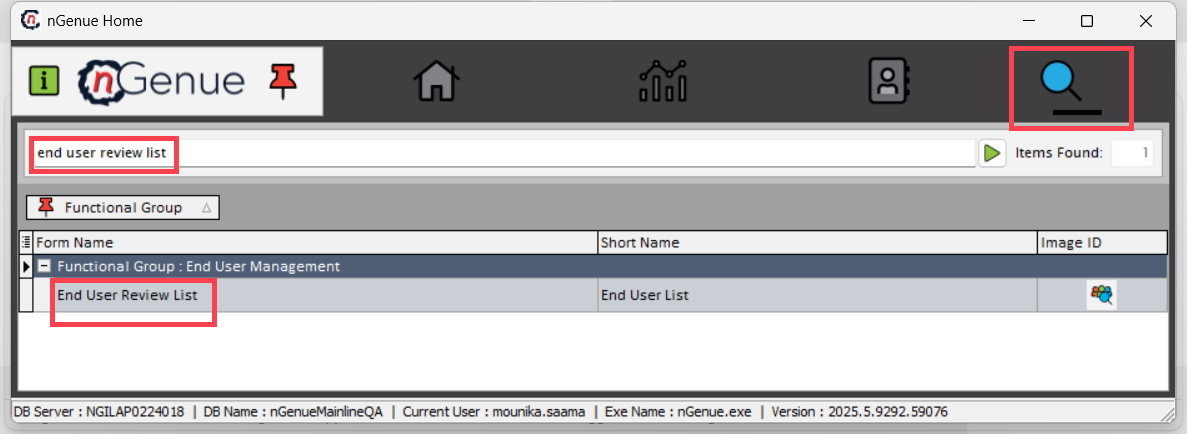
- Click the Search icon and enter end user review list in the search bar.
-
Double-click End user review list to open the screen.
-
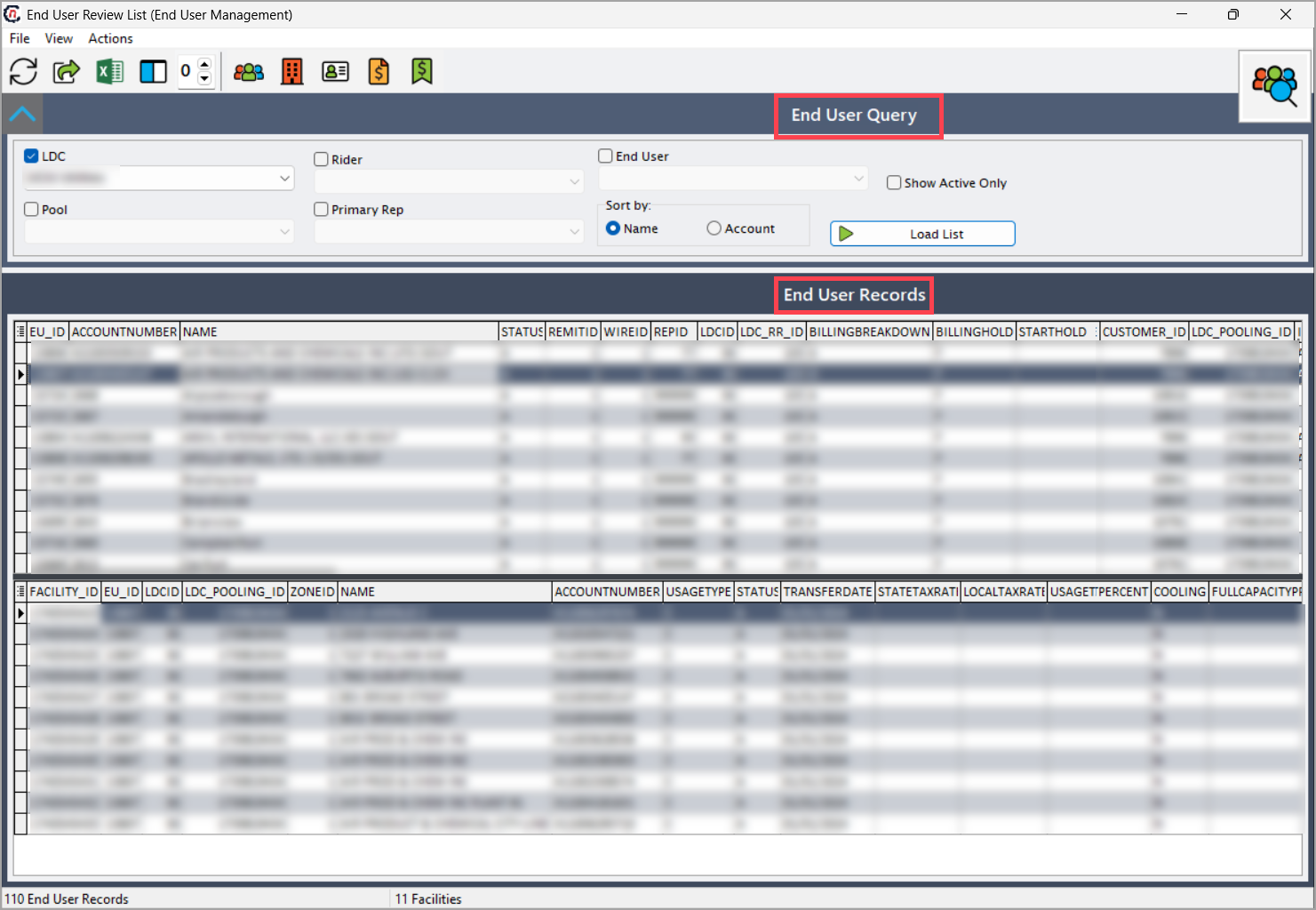
The screen consists of two sections:
- End user query: Use this section to filter data based on selected criteria.
- End user records: This section automatically displays data based on applied filters.
End user query section
Use the following fields to filter data:
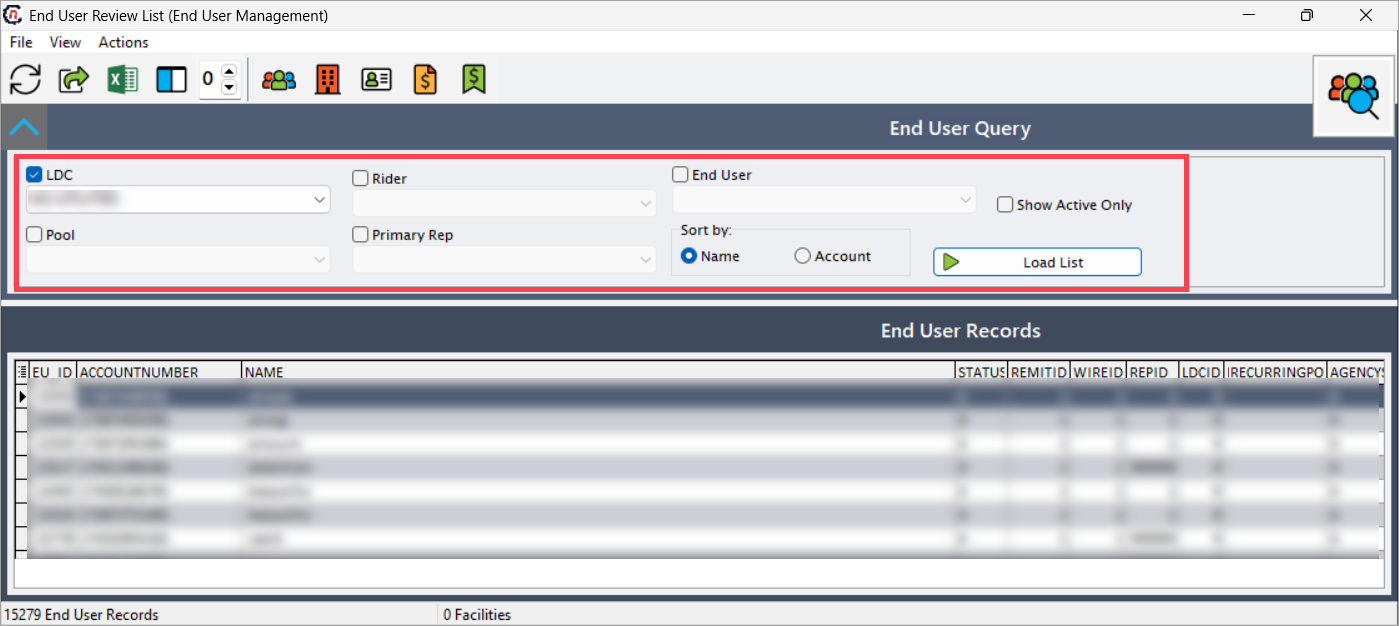
| Fields | Description |
|---|---|
| LDC | Filter end users by LDC. |
| Rider | Filter end users by LDC rate rider. |
| Pool | Filter end users by LDC pool. |
| End user | Retrieve data for a specific end user. |
| Primary rep | Filter by primary representative. |
| Sort By | Sort the list by name or account. |
| Show active only | Display only active end users. |
Click Load list to display records.
End user records section
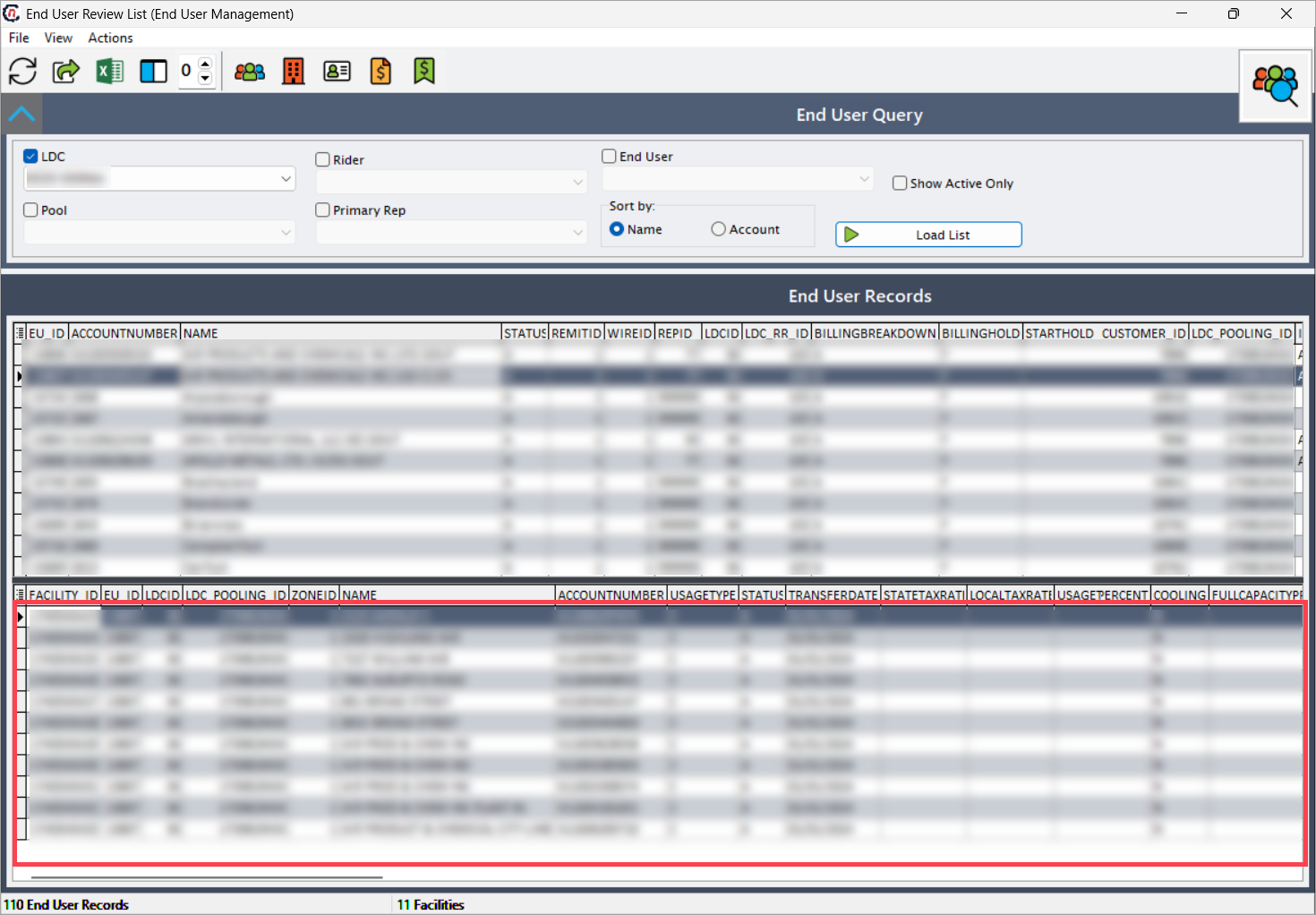
The End user records section automatically displays data based on the applied filters. Selecting an end user also loads the corresponding facility details.
The section is divided into two sections:
- End user grid
- Facility grid
End user grid
The End user grid displays the following fields:

| Fields | Description |
|---|---|
| EU_ID | Unique end user ID assigned by the system. |
| Account Number | LDC account number linked to the end user. |
| Name | Full name of the end user. |
| Status | status of the end user (active, setup/pending, prospect, credit hold, or terminated). |
| Remit ID | Remit address ID associated with the end user. |
| Wire ID | Wire fund ID linked to the end user. |
| Rep ID | Primary representative ID assigned to the end user. |
| LDC ID | LDC ID. |
| LDC_RR_ID | LDC rate rider ID. |
| Billing breakdown | Billing breakdown details for the end user. |
| Billing hold | Indicates whether billing is on hold, preventing bill generation. |
| Start hold | Start date of the billing hold. |
| End hold | End date of the billing hold. |
| Recurring PO | Recurring PO number configured in Billing Settings. |
| Agency status | Current agency status for the end user. |
| Invoice message | Message configured to appear on the invoice. |
| Customer ID | Unique customer ID associated with the end user. |
| LDC pooling ID | LDC pool ID configured in the LDC pool screen. |
| Internal tag | Internal business unit ID used for classification. |
| Sales account | Sales account ID. |
| Short name | Short name for the end user. |
| Reporting unit | Reporting unit associated with the end user. |
| Payment terms | Payment terms (for example, monthly) configured in A/R. |
| Pool name | LDC pool name linked to the end user. |
| Rider name | LDC rate rider name. |
| Rep name | Full name of the primary representative. |
| Parent name | Parent customer name linked to the end user. |
| Service rep | ID of the assigned service representative. |
Facility grid
The Facility grid displays the following fields:
| Fields | Description |
|---|---|
| Facility ID | Unique facility ID assigned by the system. |
| EU_ID | End user ID to which the facility is linked. |
| LDC ID | LDC ID associated with the facility. |
| LDC pooling ID | LDC pool ID to which the facility belongs. |
| Zone ID | Pipeline zone ID. |
| Name | Full name of the facility. |
| Account number | LDC account number associated with the facility. |
| Usage type | Type of usage (for example, residential, commercial). |
| Status | Current activity status of the facility. |
| Transfer date | Date when the final bill was generated (if applicable). |
| State tax rate | State-level tax rate applied to the facility. |
| Local tax rate | Local-level tax rate applied. |
| Usage tax rate | Usage-based tax rate applicable to the facility. |
| Comments | Additional notes or comments related to the facility. |
| Meters | Total count of active meters associated with the facility. |
Summary
The End user review list screen enables comprehensive management and analysis of both end user and facility data. With its filtering options and detailed grid fields, users can efficiently review account information, billing details, and operational status. This functionality streamlines data management, enhances accuracy, and ensures transparency across customer and facility records.