Reviewing nominations and storage balance
The Nominations and storage balance review screen provides an interface to review daily usage, nominations, and storage balances based on Local Distribution Company (LDC) balancing requirements. Within this screen, it is also possible to create or view end-user trades to adjust imbalances or reallocate storage volumes.
This process helps ensure that actual gas usage, nominated quantities, and available storage volumes remain balanced and compliant with LDC rules and contractual limits.
The review is typically performed:
- At the end of each gas day to validate nominations against actual consumption.
- During mid-month reviews or before generating daily nominations for upcoming periods.
- When imbalance thresholds are exceeded or nearing limits.
- Before initiating end-user trades or storage reallocations to correct imbalances.
- To monitor daily and cumulative variances between nominated and actual gas usage.
Prerequisites
Before working on the Nominations and storage balance review screen, ensure the following prerequisites are met:
- User permissions: Configure the user permissions including User type, Security user, Security group, Security assign user, and Security assign permissions in their respective screens to enable access to the Nominations and storage balance review screen.
- LDC set up: Ensure the Local Distribution Company (LDC) and LDC pool, are properly configured.
- End user and facility set up: Ensure the end user and facility are fully configured.
- Contract setup: Ensure MDQ and contract quantities are defined and configured.
- Daily nominations generated: Ensure daily nominations have already been created and reviewed.
Procedure to review nominations and storage balance
- Log in to nGenue application.
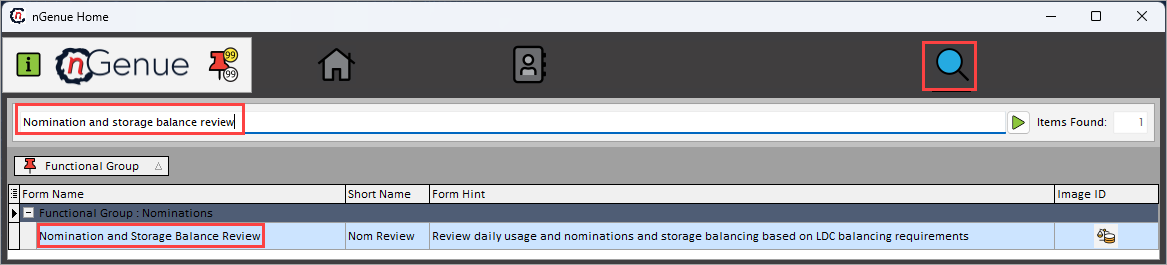
- Click Search icon and enter Nominations and storage balance review in the search bar.
-
Double-click Nominations and storage balance review to open the respective screen.
-
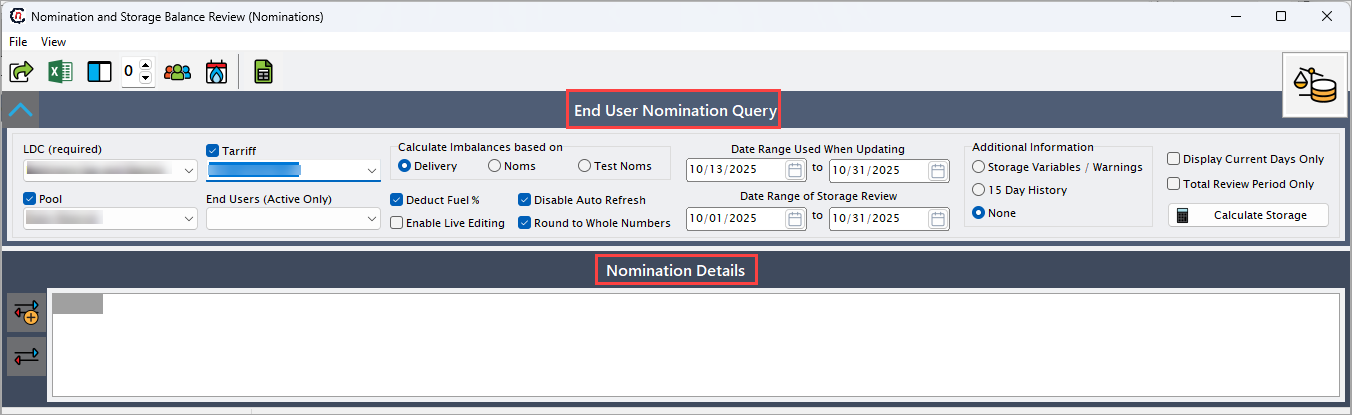
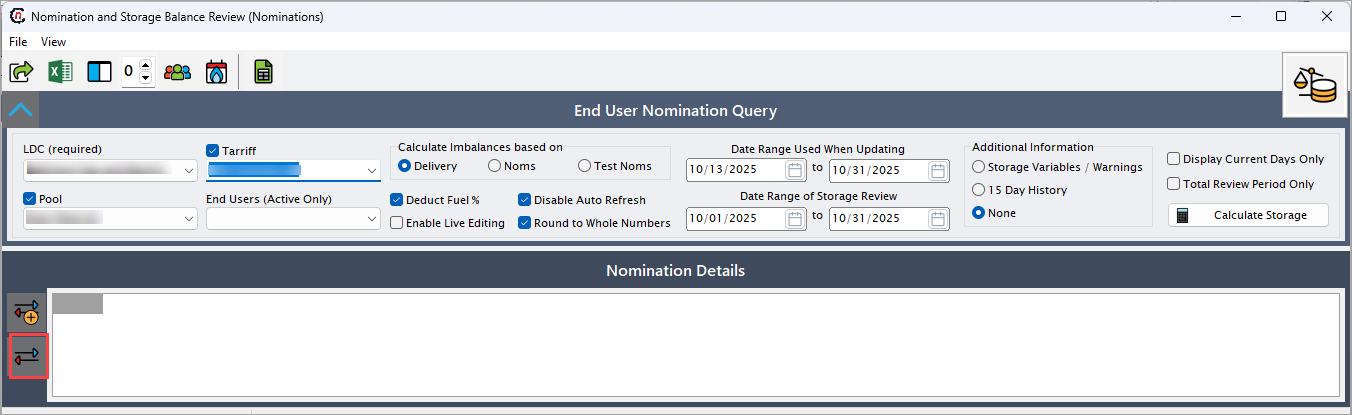
In Nominations and storage balance review screen, there are two sections
- End user nomination query: This section provides filter to apply and retrieve nomination records.
-
Nomination details: This section displays the resulting nomination and storage balance data based on the selected criteria.
-
Complete the following required fields available in End user nomination query screen as mentioned in below table:
Fields Description LDC (required) Select the LDC for which the nominations are to be reviewed. Pool Select the pool associated with the selected LDC. Tariff Choose the applicable rate or tariff used for the nomination. End user (Active only) Select the active end user for which data will be retrieved. Calculate imbalances based on Choose the basis for calculating imbalances, such as scheduled or actual usage. Deduct fuel % Select this option to calculate imbalances after accounting for the specified fuel percentage. Disable auto refresh Select this checkbox to prevent automatic data refresh to allow manual updates after filters are applied. Enable live editing Select this checkbox to allow inline editing of data directly within results grid. Round to whole numbers Select this option to round displayed quantities to whole number for easier review. Additional information Select this option to display additional information related to nominations or usage. Display current days only Select this option to limit the results to current gas day. Total review period only Select this option to consolidate the results to display totals for the chosen review period. -
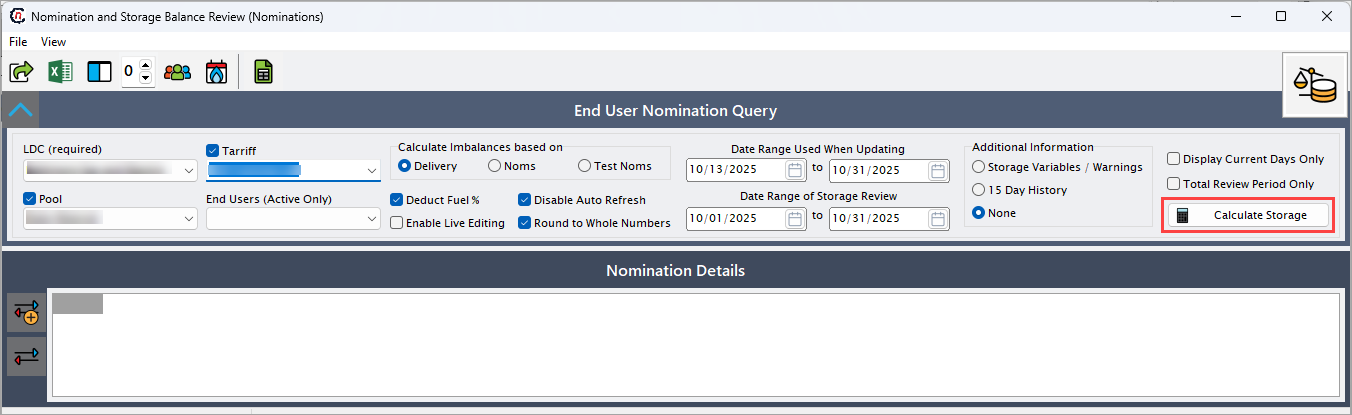
Click Calculate storage to display the nomination and storage balance details.
Procedure to create end user trade
-
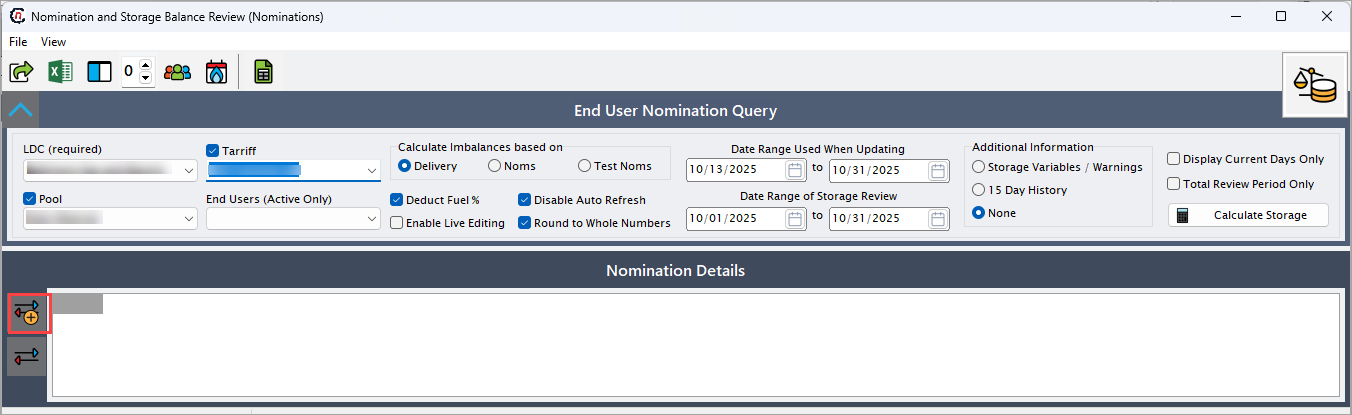
In the Nomination details section, click Create end user trade to open respective screen.
-
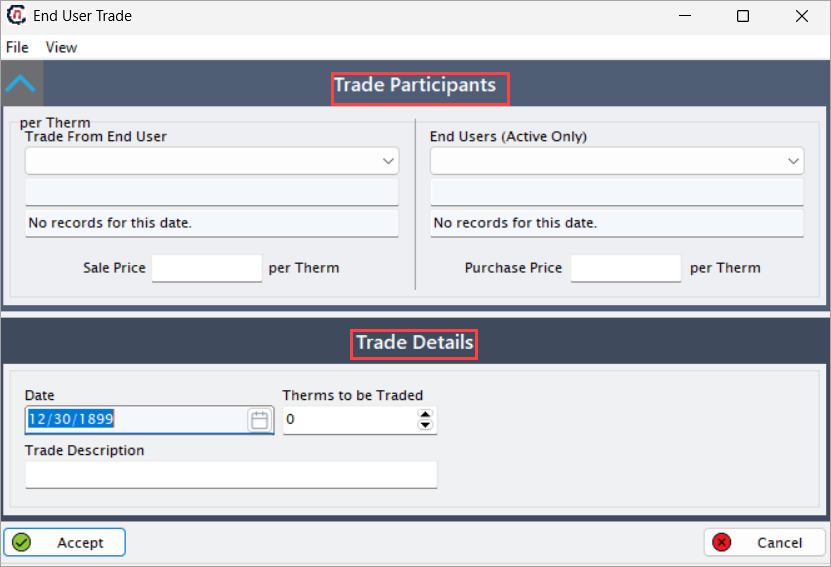
The End user trade screen has two sections:
- Trade participants: This section displays participants involved in the trade.
-
Trade details: This section provides information related to the trade.
-
Complete the required fields as mentioned in table below:
Trade participants
Fields Description Trade from end user Select the end user initiating the trade. End users (Active only) Select the active end users eligible for the trade. Sales price Enter the price at which the therms are sold. Purchase price Enter the price at which the therms are purchased. Trade details
Fields Description Trade date Specify the date of the trade. Therms to be traded Enter the quantity of therms to be exchanged. Trade description Provide a description or note for the trade. -
Click Accept to record the trade, or click Cancel to discard changes.
Procedure to view end user trade
-
In the Nomination details section, click View end user trade to open respective screen.
-
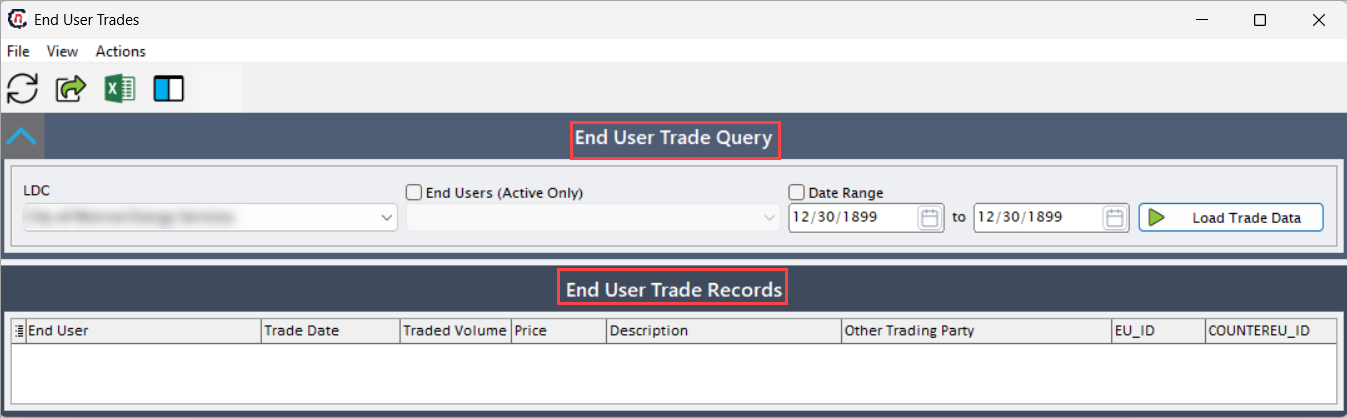
The End user trades screen has two sections:
- End user trade query: This section allows you to specify criteria to load the relevant trade records.
-
End user trade records: This section provides all the information related to the selected trade.
-
Complete the following fields available in End user trade query section as mentioned in the table below:
Fields Description LDC Select the LDC to filter the trades. End users (Active only) Select the end user to view trades associated with them. Date range Specify the start and end dates to load trades within the desired period. -
Click Load trade data to fetch the trade records based on specified criteria.
-
Upon executing the query, the relevant trade records will be displayed in the End user trade records section.
The table lists fields for each displayed trade record with brief descriptions.
Fields Description End user Identifies the end user involved in the trade. Trade date Specifies the date when the trade was executed. Traded volume Specifies the quantity of gas traded in therms. Price Indicates the price per unit for the traded volume. Description Provides the description related to the trade. Other trading party Specifies the start and end dates to load trades within the desired period.
Summary
The nomination and storage balance review process enables monitoring and adjustment of gas nominations and storage levels in line with LDC requirements and contract limits. It provides visibility into usage variances, supports correction of imbalances through end user trades and ensure accurate daily balancing operations.