Create a task
A task is a structured record created to capture important actions, events, or issues that require tracking, follow-up, or further investigation. Tasks are created automatically upon system failure or mishaps, or manually by users, to ensure the issue is documented, resolved, and audited properly. The primary purpose of task is to log key operational events or failures for accountability, track task ownership, due dates, and progress.
Process to create a task
Step 1: Navigate to Create task screen
Follow the steps below to navigate to the Create task screen:
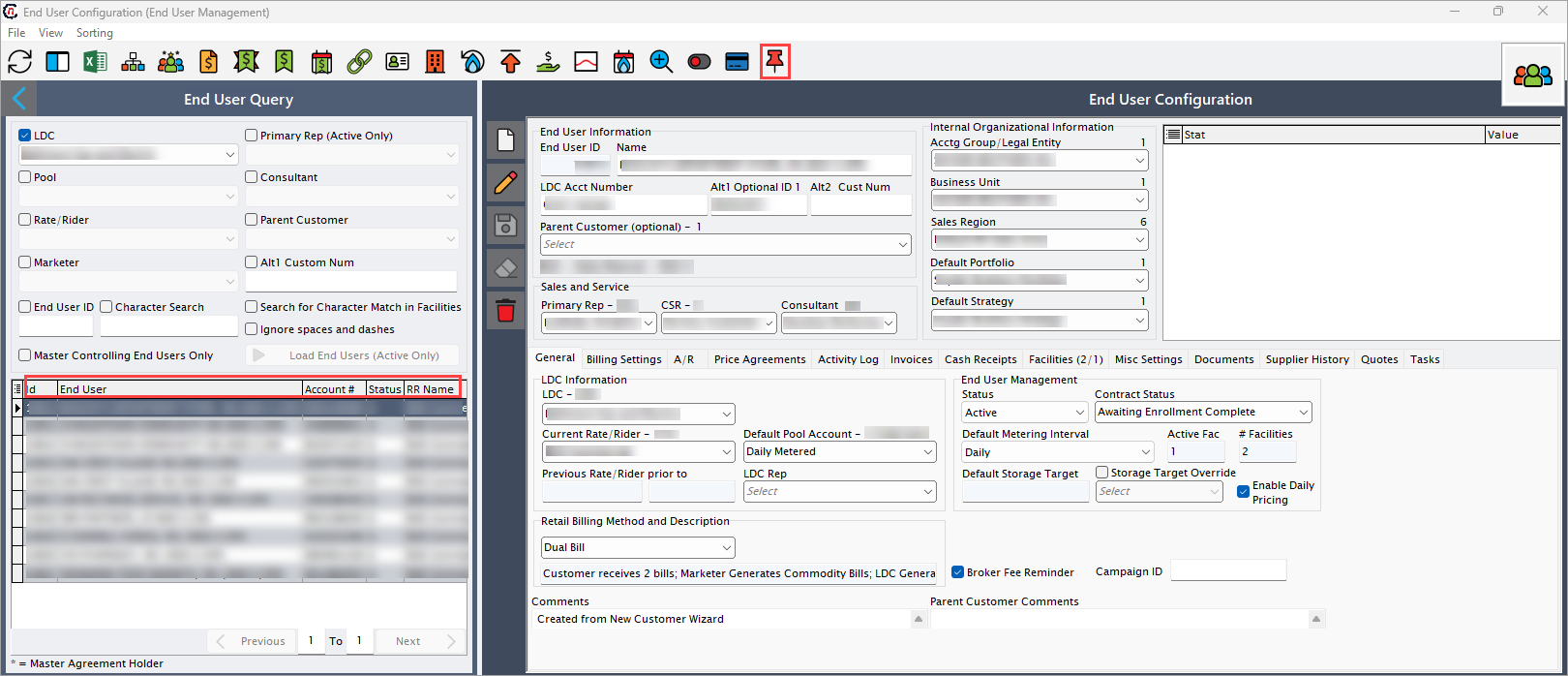
- Navigate to End user configuration screen, select the end user for whom you want to create a task.
- Click the Create task related to this end user icon to open the corresponding screen.
-
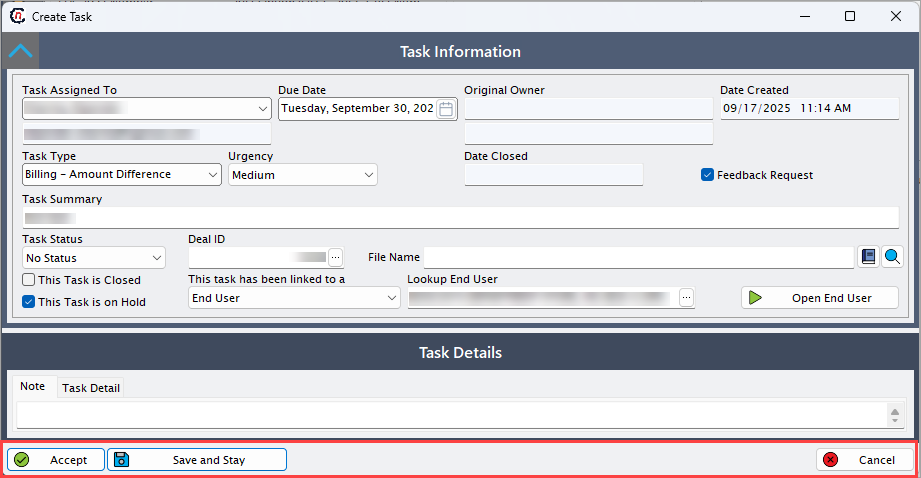
In the Create task screen, there are two sections:
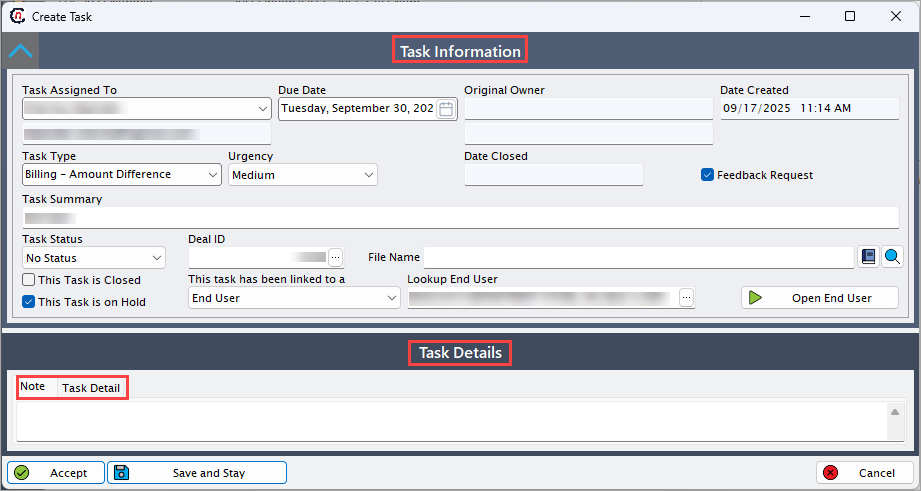
- Task information: This section lets users record and manage key task details. They can choose the task type and status, link it to an entity, assign an owner, and mark it on hold or closed. All changes are automatically logged for easy tracking and review.
- Task details: This section allows users to capture and manage all information related to a task through two sub-tabs.
- The Note tab is used for recording comments, updates, or additional context.
- The Task detail tab enables adding, editing, or deleting task detail that records contact info, dates, and related data. All changes are logged to provide a complete history for tracking, review, and reference.
Step 2: Add task information
Task information section lets you add essential task attributes such as task type, status, and linked entity while ensuring all updates are properly recorded and tracked. Complete the required fields available in the Task information section to create a task related to the selected end user.
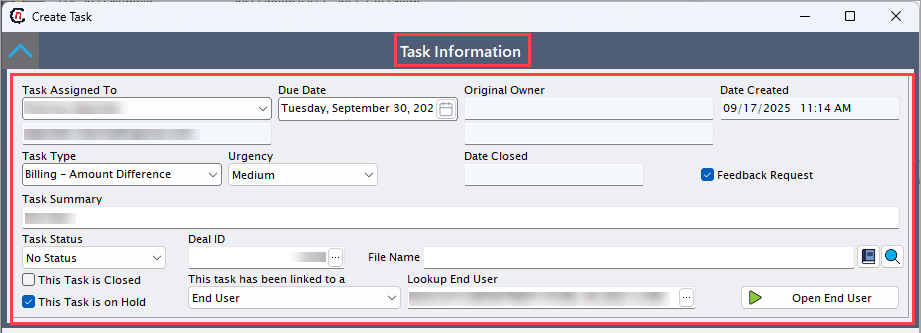
The table below provides brief description of each field available in the Task information tab.
| Fields | Description |
|---|---|
| Task assigned to (mandatory) | Specify the user responsible for the task resolution. Ensures clear ownership and accountability, if left blank task can't be created. |
| Due date | Specify the last date for task completion. Enables scheduling and reminders, overdue tasks can trigger escalation or alerts. |
| Original owner | Specify the initial creator of the task. Maintains an audit trail and allows follow-up with originator in the event of incomplete information. |
| Date created | Specify the date and time of task creation. |
| Task type (mandatory) | Select the type of task being created, options may include activity file issue, drop issue, meter reads error, credit limit issue, historic usage accepted, historic usage issue, invoice inbound issue, and many more. Categorizes the task for routing, and reporting. Choosing wrong task type can lead to misrouting, causing delays and incorrect handling. |
| Urgency | Select the priority level of the task such as low, medium, high or immediate. Specifies queue ordering and alerts, high or immediate priority invoke automatic escalation procedures. |
| Date closed | Specify the date on which the task was closed. Otherwise task will be reported as open. |
| Feedback request | Select this checkbox to request feedback and to initiate follow-up notifications. If unchecked, no feedback is solicited. |
| Task summary | Provide brief description about the task and related details briefly for quick reference. |
| Task status | Select the status of the task as no status, approved, or rejected. This helps to track task progress and transition. |
| Deal ID | Provide the unique identifier of associated deal, if applicable. If any mismatches, deal-specific billing and reporting may fail. |
| File name | Specify the file name and location, browse and select the file related to the task. Centralizes required evidence and input files, absent files can delay verification or require rework. |
| This task is closed | Select this checkbox to indicate the task is closed. Indicates task completion and stops reminders. If unchecked, the item stays in the active queue. |
| This task is on hold | Select this checkbox to indicate the task is on hold. Suspends due-date tracking and escalation, leaving it unchecked signals ongoing work. |
| This task has been linked to a | Select the type of entity associated with the task (for example, none, end user, facility, supplier, price agreements, and others). It supports task management and triggers linked processes. |
| Lookup end user | Click more icon to open Lookup end user pop-up window, which provides interface to search and select the end user (relevant entity). For example, if the task is linked to an end user, it searches for end users or if linked to a facility, it searches facilities. |
| Open end user | Click Open end user to display the detailed record of the selected end user or other linked entity for viewing in their respective screen. |
Step 3 : Add task details
Task details section captures supporting context through the Note tab, while the Task detail tab lets you add and update task detail records for structured data that includes contacts, dates, and related information with all changes tracked and recorded.
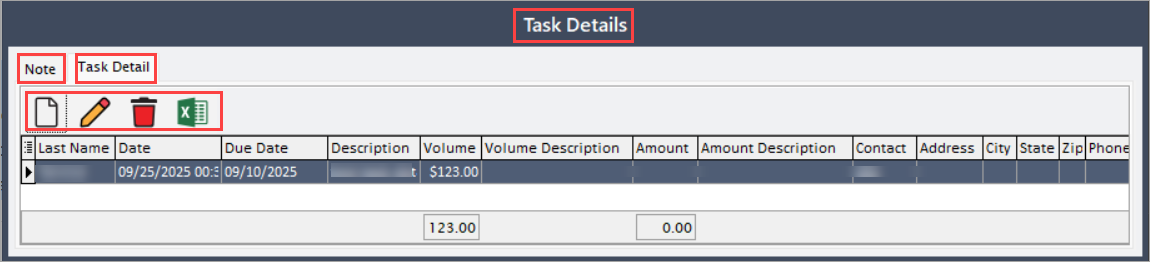
Note tab
The Note tab allows users to add free-form text for task-related details, instructions, or updates. Notes are saved with the task record for auditing and reference.
Task detail tab
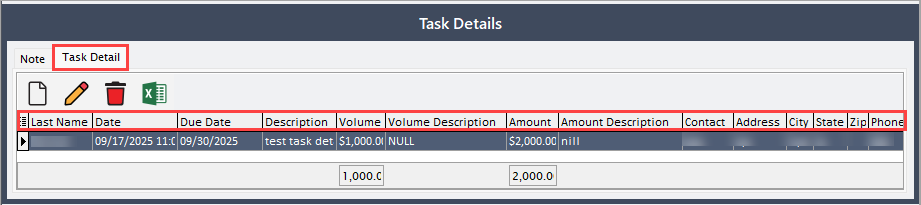
The Task detail tab allows users to add a new task detail record, edit or delete existing records, and view all logged task details. The following fields are captured for each task detail line item:
| Fields | Description |
|---|---|
| Last name | Specifies the last name of the contact related to the task. |
| Date | Specifies the date task was created. |
| Due date | Specifies the last date for task completion. |
| Description | Provides the additional information about the task. |
| Volume | Indicates volume associated with the task. |
| Volume description | Provides the description about the associated volume. |
| Amount | Indicates the monetary value associated with the task. |
| Amount description | Provides the description about associated amount. |
| Contact | Specifies the contact name associated with the task. |
| Address | Provides relevant address associated to the task. |
| City | Specifies the city name associated with the task. |
| State | Specifies the state corresponds to the task. |
| ZIP | Specifies the postal ZIP code related to the task. |
| Phone | Specifies the phone number of the associated contact. |
| Detail completed | Specifies the date when the detail was last updated or completed. |
| Employee ID | Specifies the unique identifier for assigned employee associated with the task. |
| Task event detail ID | Specifies the reference ID that links to specific event detail. |
| Parent ID | Specifies the identifier assigned to the parent source associated with the task. |
| Task ID | Indicates the system-generated identifier of this task. |
| Parent source | Specifies the source of the parent task or event. |
| First name | Specifies the first name of the contact person. |
Step 4: Save the task
Click Accept to save changes to the task, Save and stay to review or continue editing, or Cancel to discard the task and return to the previous screen.
Once saved, the task appears in both the Activity log and the Task tab to track, maintain clear records for auditing and future reference and ensure timely resolution.