Configuring WACOG pool expense
The WACOG pool expense screen in nGenue allows users to record and manage expenses associated with a Weighted Average Cost of Gas (WACOG) pool. These expenses represent additional costs such as transportation, storage, or supplier charges that are applied to a specific WACOG pool to ensure accurate gas cost allocation.
A WACOG pool expense represents any financial transaction or cost component that impacts the total weighted average cost of gas within a pool. It allows users to assign non-purchase-related expenses (for example, adjustments, GL postings, or external costs) to specific WACOG pools for precise cost tracking and reporting.
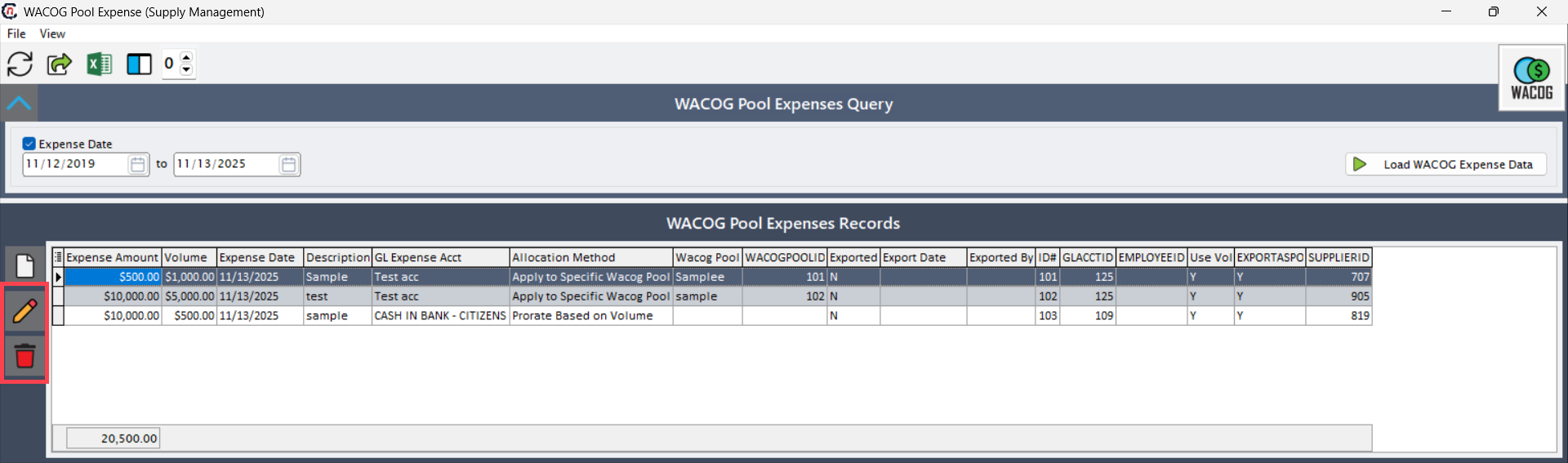
The following table lists the icons available on the WACOG pool expense screen and their respective functions:
| Icons | Icons name | Description |
|---|---|---|
 |
Add new expense | Creates a new WACOG pool expense record. |
 |
Edit selected expense | Opens the selected WACOG pool expense record for editing. |
 |
Delete selected expense | Permanently removes the selected WACOG pool expense record. |
This document outlines the process to create and configure WACOG pool expenses in nGenue.
Prerequisites
Before working on the WACOG pool expense screen, ensure the following prerequisites are met:
- Ensure the nGenue application is installed and use valid login credentials to log into the application.
- User permissions: Must configure security settings including User type, Security user, Security group, Security assign user, and Security assign permissions in their respective screens to ensure required access for WACOG pool expense actions.
- Chart of accounts: Configure GL transaction settings to enable the posting of pool expense entries to the general ledger. Ensure correct mapping between WACOG expense accounts and GL accounts for accurate reporting.
- Counterparty: Ensure that the required Counterparty records are created
Procedure to configure WACOG pool expense
Step 1: Navigate to the WACOG pool expense screen
- Log in to the nGenue application.
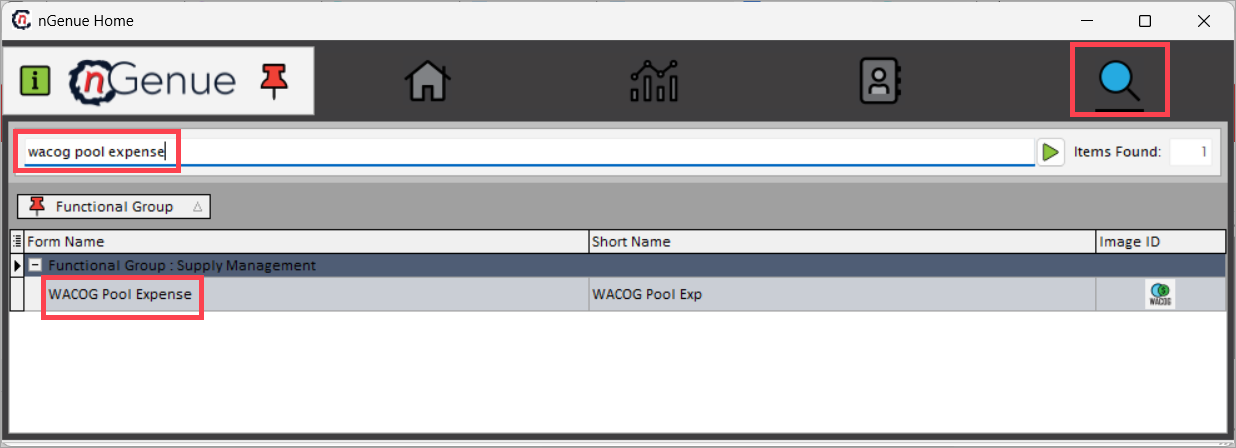
- Click the Search icon and enter wacog pool expense in the search bar.
-
Double-click WACOG pool expense to open the screen.
-
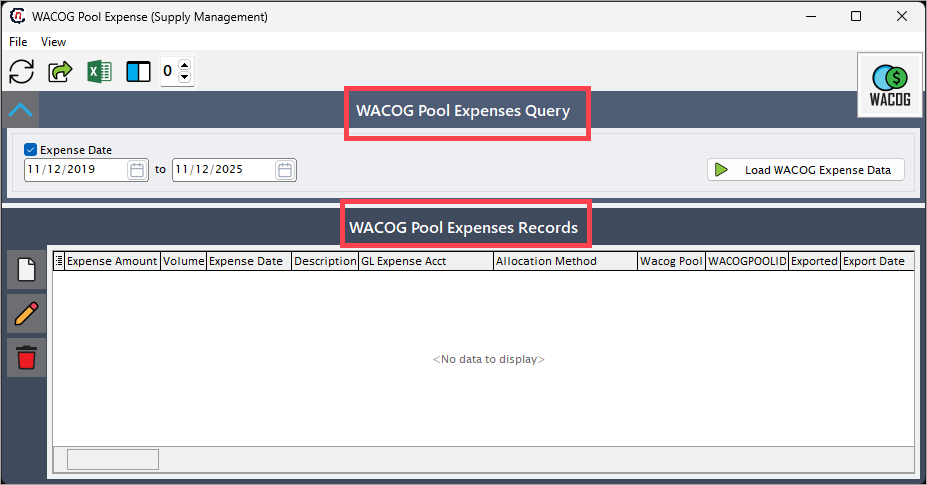
The screen is divided into two sections:
- WACOG pool expense query: Enter the expense date and click Load WACOG expense data to retrieve existing records.
-
WACOG pool expense details: Allows you to add, edit, or delete WACOG pool expense records.
Step 2: Create a WACOG pool expense record
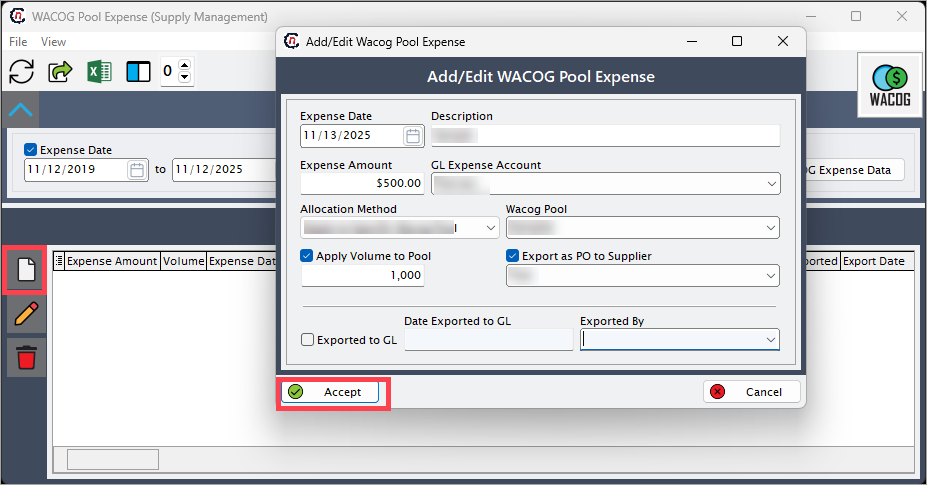
- In the WACOG pool expenses records section, click Add new expense.
-
The system opens the Add/Edit WACOG pool expense screen. Enter the details as shown below:
Fields Description Expense date Specify the date on which the expense occurred. Description Provide a brief description of the expense (for example, transportation surcharge, storage fee). Expense amount Enter the total cost amount to be allocated to the WACOG pool. GL expense account Select the corresponding general ledger account to record the expense. Allocation method Choose how the expense should be distributed across pools: if you select Prorate based on volume Wacog pool Wacog pool field will be disabled and what more happens write here. If we select Apply to specific Wacog pool Wacog pool field will be enabled and what more happens write here. WACOG pool Select the specific WACOG pool to which the expense will be applied. Apply volume to pool Check this option if the expense should affect both cost and volume calculations. Export as PO to supplier Enable this option to generate a purchase order for supplier tracking. After enabling, you can select the supplier from the dropdown list. dowpdown list shows the list of the counterparties Exported to GL Select this checkbox to mark the expense as exported to the general ledger. Date exported to GL Enter the date when the expense was exported to the general ledger. Exported by Select the user who exported the record from the dropdown list. -
Click Accept to save and configure the WACOG pool expense record.
-
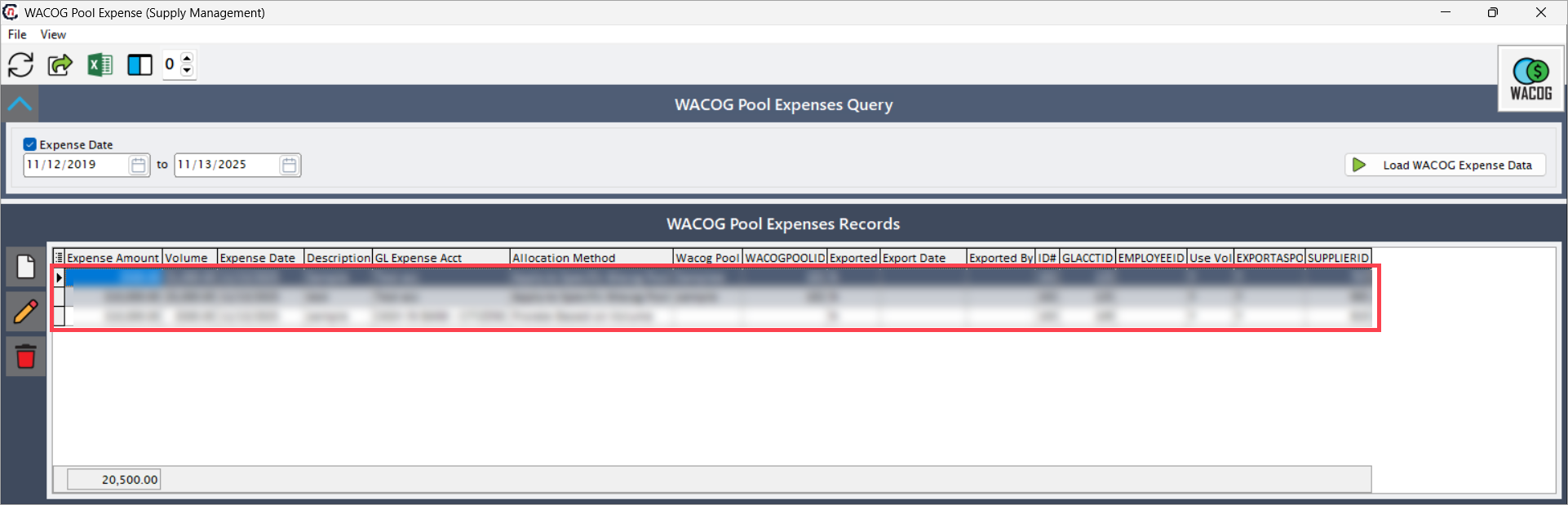
The newly created record will appear in the WACOG pool expenses records section.
Step 3: Edit or delete WACOG pool expense record
-
Edit a record
- Select an existing expense record from the WACOG pool expenses records list.
- Click the Edit selected expense icon.
- The system opens the record in edit mode. Update the required details and click Accept to save changes.
-
Delete a record
- Select the expense record you wish to remove.
- Click the Delete selected expense icon.
-
Confirm the deletion when prompted. The record will be permanently removed from the system.
Summary
The WACOG pool expense screen in nGenue enables users to capture and manage all cost adjustments that impact the weighted average cost of gas. By recording these expenses accurately, users ensure that total pool costs reflect true operational and financial values. Proper configuration of WACOG pool expenses enhances the accuracy of WACOG calculations, ensures alignment with GL transactions, and supports transparent cost reporting across all pools.