Adding a user type
The User type screen allows you to define and manage various categories of users such as employees, contractors, or IT support staff. Defining user types helps in organizing user roles, managing access permissions, and maintaining system security efficiently.
The following table lists the icons available in the User type screen and their respective functions:
| Icons | Icons name | Description |
|---|---|---|
 |
Add a user type record | Creates a new user type record. |
 |
Edit a user type record | Opens the selected user type record for editing. |
 |
Save changes to current user type | Saves the modifications made to the current user type record. |
 |
Cancel changes to user type record | Discards unsaved changes to the current user type record. |
 |
Delete current user type record | Permanently removes the selected user type record. |
Prerequisites
Before working on the User type screen, ensure the following prerequisites are met:
- Ensure the nGenue application is installed.
- Use valid login credentials to access the application.
Procedure to add a user type
Step 1: Navigate to the User type screen
- Log in to the nGenue application.
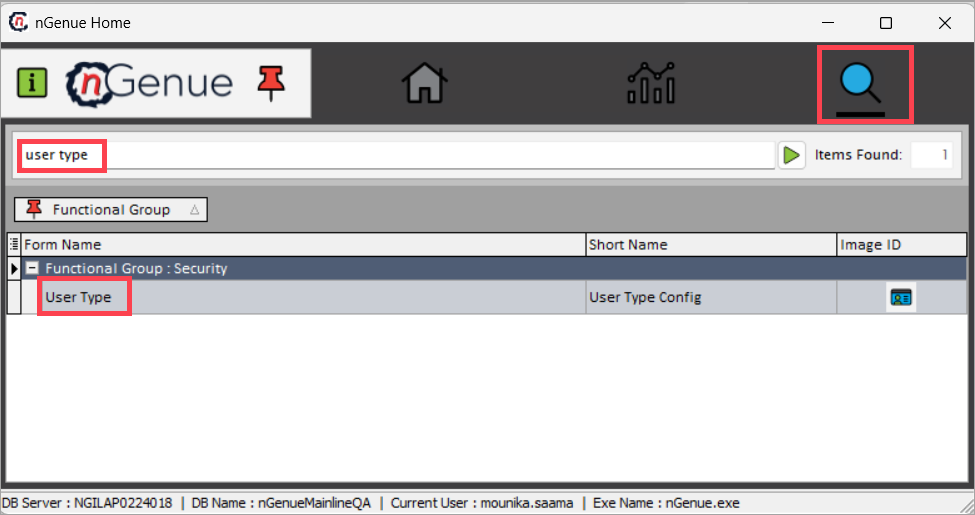
- Click the Search icon and enter user types in the search bar.
-
Double-click User type to open the corresponding screen.
Step 2: Add a user type
-
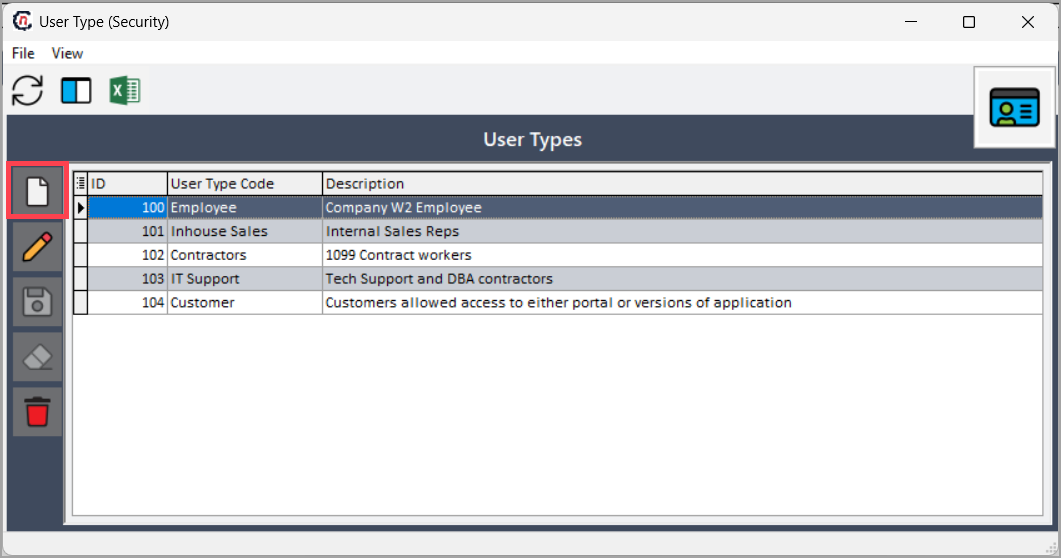
In the User type screen, click the Add a user type record icon.
-
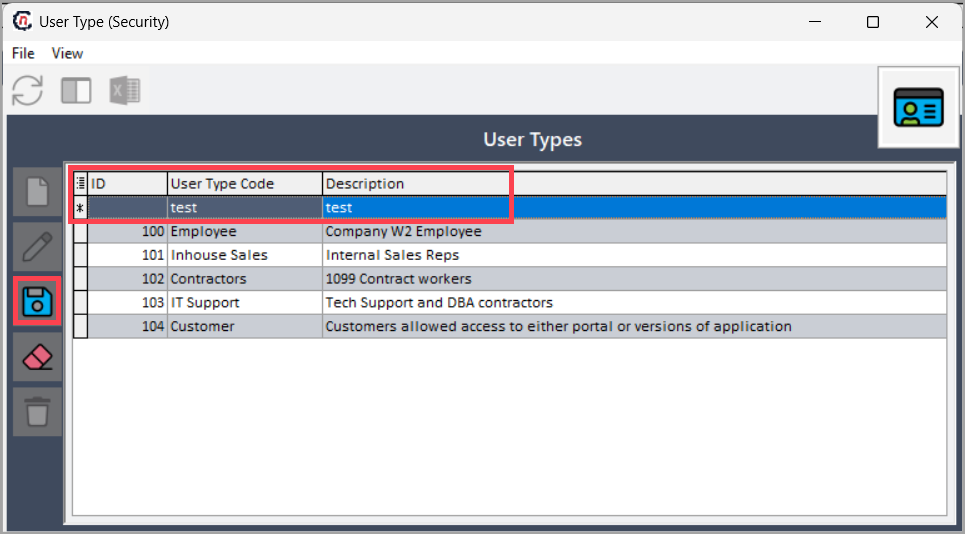
Enter the User type code and Description.
-
Click the Save changes to current user type icon to save the new record.
Step 3: Edit a user type (optional)
- Select the required user type record from the grid.
-
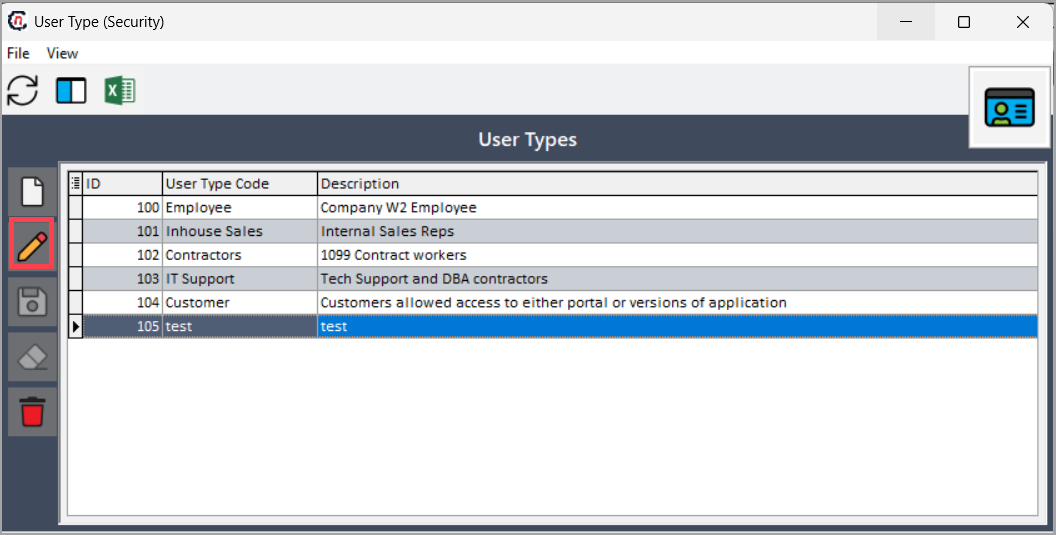
Click the Edit a user type record icon.
-
Modify the User type code or Description as required.
-
Click the Save changes to current user type icon to update the record.
Step 4: Delete a user type (optional)
- Select the required user type record from the grid.
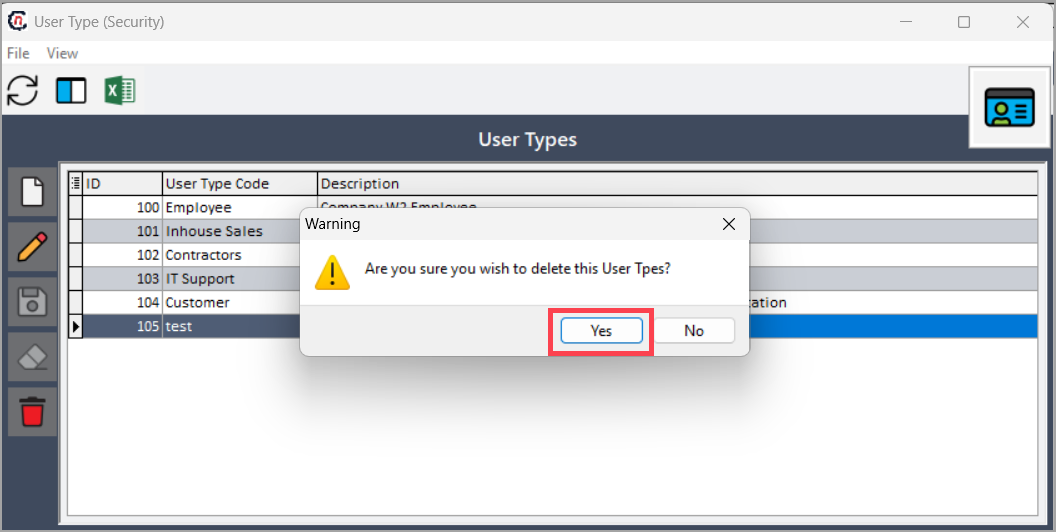
- Click the Delete current user type record icon.
-
Click Yes to confirm the deletion.
Summary
The User type screen enables administrators to define and manage different categories of users within the system. By following the above procedure, you can easily create and maintain user type records, ensuring proper user classification and streamlined access management across the nGenue application.